To run IPTV on a second TV in the same home, you need four things: a plan with at least two simultaneous connections, a streaming-capable device on the second TV, a network path strong enough for both streams at once, and ideally a separate login for each screen. If the plan allows only one connection, the second TV will either refuse to play or knock the first one off.
The common failure is not hardware. It is a household that bought one connection, then discovered that Saturday hockey in the living room and a cartoon in the basement count as two. Count first, then set up.
Step 1: Count simultaneous screens, not TVs
A connection is in use for as long as a screen is playing. Two TVs that are never on at the same time can share one connection. Two TVs that overlap even occasionally cannot. Walk through your week:
- Do you and a partner watch different things in the evening?
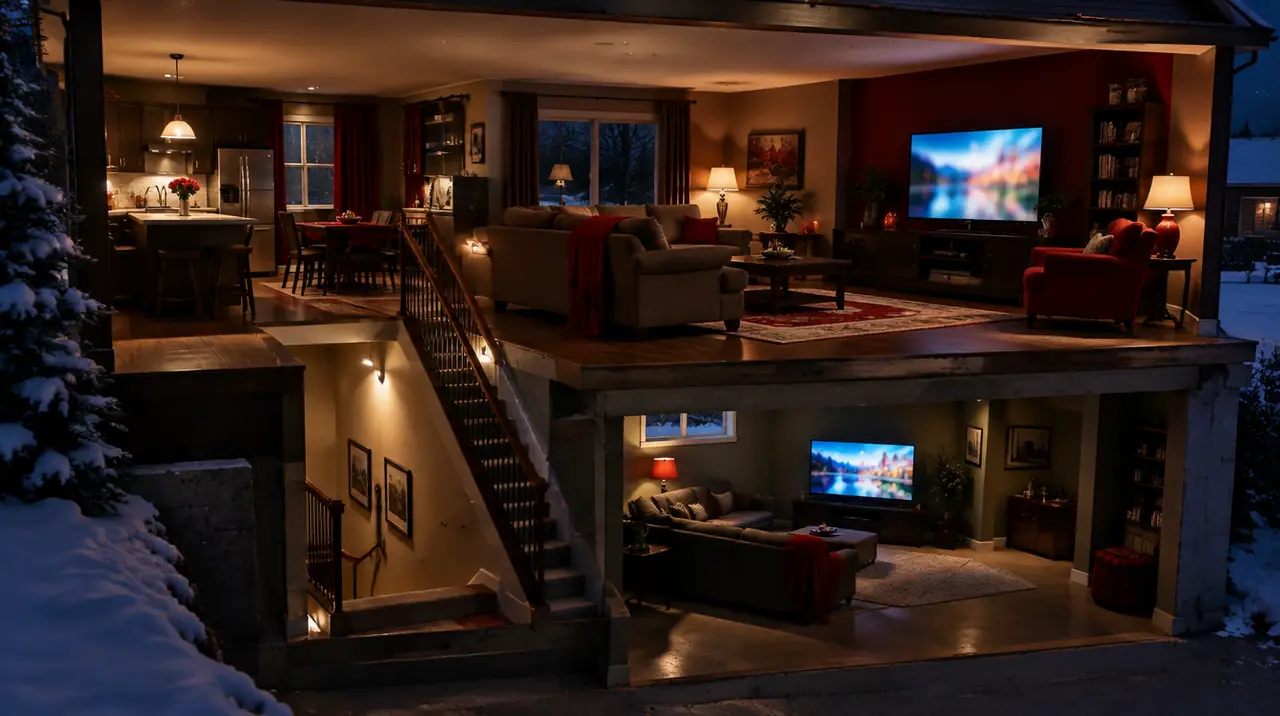
- Do children watch in the basement while parents watch upstairs?
- Does someone leave a TV on in the background while on a laptop?
- Will a phone or tablet join in as a third screen?
If any answer is yes at the same time as the other TV is running, buy two connections. Our guides on how many IPTV connections you need and single vs multiple connections go through edge cases. A tablet in someone’s lap counts as a screen.
| Screens | 1 month | 3 months | 6 months | 12 months |
|---|---|---|---|---|
| 1 | $19 | $29 | $49 | $79 |
| 2 | $29 | $49 | $89 | $129 |
| 3 | $39 | $69 | $119 | $179 |
| 4 | $49 | $89 | $129 | $199 |
The second screen is a bargain compared with a second connection bought separately: on 12 months, two screens cost CA$129 against CA$158 for two separate single-screen plans (2 x CA$79), an 18% saving on that basis. New customers get +1 bonus month on 3 and 6 months and +2 on 12 months. Renewal is manual with no bonus months. Current prices hold until January 15, 2027.
Step 2: Give each screen its own login where the plan provides it
Separate credentials per connection, where your plan provides them, make faults easy to trace. If the basement TV misbehaves, you know which login to check, and signing in on one device does not sign out another. Keep credentials inside the household. Never post them online. If you are not sure which login format you have, see Xtream Codes vs M3U.
Step 3: Do the bandwidth arithmetic
Use these working figures: HD roughly 5 to 8 Mbps per stream, 4K roughly 15 to 25 Mbps per stream. Add everything else running at the same time.
| Scenario | IPTV streams | Approximate demand | Leave headroom to |
|---|---|---|---|
| Two HD TVs | 2 x HD | 10 to 16 Mbps | about 25 Mbps or more |
| One 4K TV plus one HD TV | 1 x 4K, 1 x HD | 20 to 33 Mbps | about 50 Mbps or more |
| Two 4K TVs | 2 x 4K | 30 to 50 Mbps | about 75 Mbps or more |
Headroom matters because video calls, game downloads and phones share the same pipe, and real-world speeds are lower than the plan label. Our internet speed guide shows how to test properly: measure on the TV’s own device, in the evening. Upload speed is irrelevant here. Download is what counts, and on cable internet in many Canadian homes it is plentiful while Wi-Fi is the bottleneck.
Step 4: Choose the network path for each TV
The best connection for each TV depends on where it is relative to the router. Rank the options and pick the highest you can.
- Ethernet cable. Best. Wired Cat 5e or Cat 6 to the TV or the device (see Wikipedia on Ethernet if you want to know why it is steadier). A cable along a baseboard or under a rug is cheap.
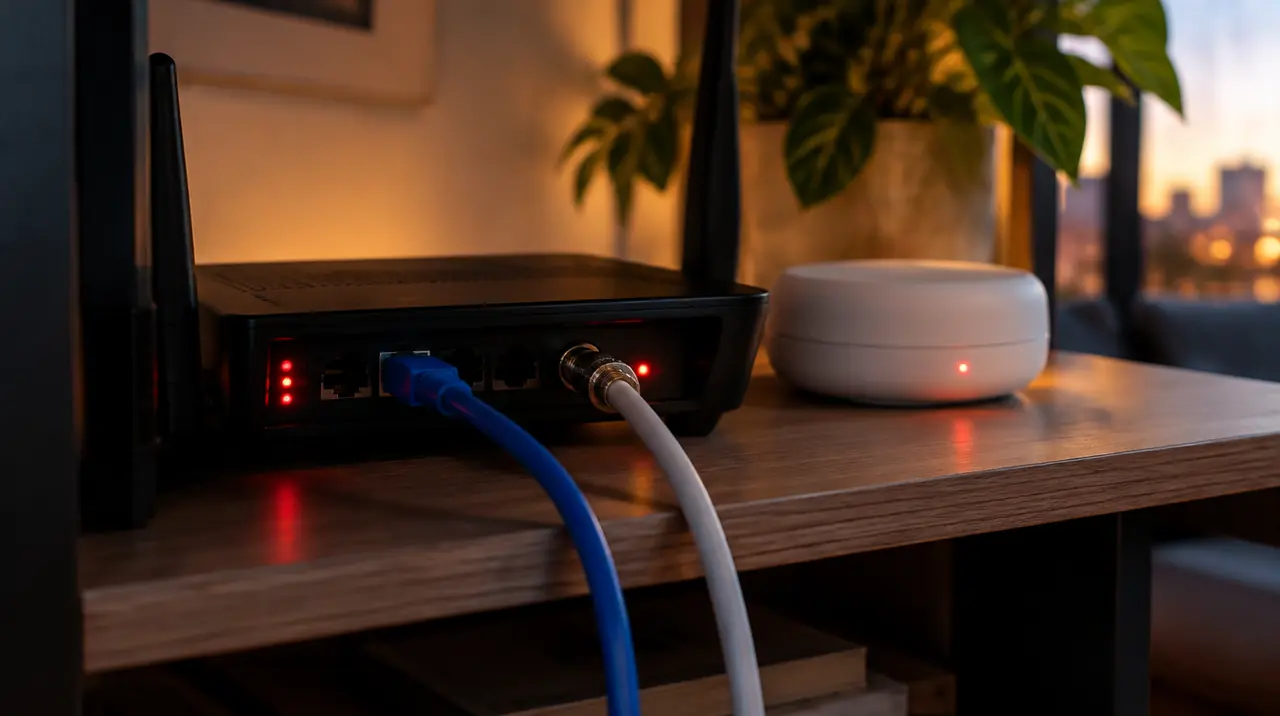
- MoCA over existing coax. Many Canadian homes have coaxial sockets in several rooms from the cable era. A pair of MoCA adapters turns the old coax into a wired network. Use it only if your router and adapters are MoCA-compatible; it is a good option when Ethernet cannot be run.
- Powerline adapters. They use mains wiring; results vary with house wiring and appliances on the circuit.
- Mesh Wi-Fi. A satellite node in the same room or the next one, ideally with a wired backhaul. Good for open-plan homes.
- 5 GHz Wi-Fi from the main router. Fine if the TV is in line of sight and within one or two rooms. Poor through concrete floors.
- 2.4 GHz Wi-Fi. Last resort. It reaches farther but is crowded and slower. Wikipedia’s Wi-Fi article explains why the bands behave differently.
The most reliable arrangement is the main TV wired and the second TV on 5 GHz or mesh. Our Wi-Fi vs Ethernet guide compares the options in detail.
Step 5: Choose the device for the second TV
The second TV does not need to match the first. A recent smart TV may run a player natively. An older one needs a stick or box. Our smart TV guide and devices page help you choose. Think about the person who will use it: a child or grandparent will do better with a simple remote and a short, favourites-first channel list than with a feature-heavy box.
Step 6: Install and sign in on the second TV
- Install the same player as the first TV where possible. Familiar menus mean fewer support calls.
- Open it and choose Xtream Codes or M3U. Enter the second login if you have one. Do not reuse the first TV’s login if a separate one was provided.
- Wait for the channel list and guide to load.
- Play a channel on the second TV while the first is still playing something different.
- If both play without stalling for ten minutes, you are done. If one drops, check the fixes below.
If this happens, do that
- The first TV stops when the second starts: both are using the same login, or the plan has only one connection. Use separate credentials; check the plan.
- Both buffer at the same time: your total demand exceeds your real speed. Test on each device, move one to Ethernet, and read fixing IPTV buffering.
- Only the far-room TV stutters: it is a Wi-Fi problem, not a service problem. Try 5 GHz, a mesh node, or MoCA.
- Everything is fine until someone starts a download: use your router’s priority or QoS setting to favour the TV devices, or pause the download.
- Picture is soft on the second TV only: the app may have dropped quality to cope. Wire it or move closer to the router.
Run a proper test night before you rely on it
A two-TV set-up that works at 2 p.m. can fall over at 8 p.m., when your neighbours are also streaming. Do this once, deliberately:
- Pick an evening between 7 and 10 p.m. local time. Live sport weekends are the toughest test.
- Start the first TV on a busy live channel, then start the second on a different one.
- Let both run for at least thirty minutes while someone else uses a phone or laptop normally.
- Note any freeze, drop in sharpness or sign-out, and which TV it hit. The pattern points to the cause: one TV only means its network path; both at once means total bandwidth or the plan.
Writing the findings down takes a minute and saves an hour of guessing later. If it passes, the arrangement will almost always hold; if the weak spot is the router rather than the service, you have found something worth fixing for every device in the house.
Household habits that prevent arguments
- Name the profiles or logins by room (“Living room”, “Basement”). When someone says it is broken, you know which one to check.
- Tell everyone how many screens the plan covers. If four people can start a stream and the plan has two connections, the third one will interrupt somebody.
- Turn TVs off at the remote rather than leaving a channel playing. A TV left on a live channel in an empty room still uses a connection.
- Keep a note of credentials in one safe place, not on a sticky note on the TV, and renew in advance since renewal is manual.
What we would buy
For a typical two-TV home with one main living-room TV and one bedroom TV, we would take two connections on a 12-month plan, wire the living room, and use 5 GHz Wi-Fi in the bedroom. For a household with children in the basement and parents upstairs and a phone or two on top, take three connections. If you are not sure, start with a 3-month term; the 60-day money-back guarantee from first paid activation covers eligible new paid subscriptions, so you can test the second TV under real evening load. Ask us to check any must-have channel before you pay.
Frequently asked questions
Can I use one IPTV subscription on two TVs?
Yes, if your plan allows two simultaneous connections, or if the two TVs are never on at the same time. Plans run from 1 to 4 connections. With one connection, a second TV starting playback can stop the first.
How much internet do I need for IPTV on two TVs?
Roughly 5 to 8 Mbps per HD stream and 15 to 25 Mbps per 4K stream, so two HD TVs need about 10 to 16 Mbps and two 4K TVs about 30 to 50 Mbps, plus headroom for everything else. Test speed on each TV's device in the evening.
Do I need a separate login for the second TV?
Where your plan provides separate credentials per connection, use them. It prevents one screen signing out another and makes problems easier to trace. Keep the details inside your household.
Why does my first TV stop when I turn on the second?
Either both TVs use the same login, or your plan has fewer connections than screens. Check your plan, use separate credentials per screen, and consider upgrading the number of connections.
Is Wi-Fi good enough for a second TV?
Often, if it is on 5 GHz with a clear path to the router. For a far room, mesh Wi-Fi, MoCA over existing coax, or an Ethernet cable is more reliable. Wire the main TV if you can.
What is MoCA and can it help my second TV?
MoCA turns the coaxial wiring already in many Canadian homes into a wired network using a pair of adapters. It is useful when running Ethernet is hard. Check that your router and adapters support it.
Sources
Your next step
Test the channels you actually watch.
Tell us your device, languages and preferred channels. We will help confirm availability and set up a free 24-hour trial. Read the plan and guarantee terms before paying.
Useful for someone else?
Share the guide without losing the context.