Roku is a poor fit for most IPTV subscriptions in Canada. A Roku runs Roku OS, not Android, and apps arrive through the Roku Channel Store, so an IPTV player works only if a suitable one is listed there for your device and account. If you own a Roku, check the store before anything else. If you are buying a device for IPTV, a Fire TV stick, a Google TV box or an Apple TV gives you far more player choice for about the same money.
How Roku apps actually work
Roku’s support page on adding apps describes three routes, and all three lead to the same place: the Roku Channel Store. You can add an app on the device (press Home, then choose Store, then Apps), on the Roku website at channelstore.roku.com while signed in to your Roku account, or through the Roku mobile app. Apps attach to your Roku account, so they appear on every Roku device linked to it. If a new app does not show up, Roku’s guidance is to go to Settings > System > System update and choose Check now. The steps are on Roku’s official page for adding apps.
That model is why Roku is pleasant for mainstream streaming: everything is vetted, installs are one click and there is little to break. It is also why Roku is hard for IPTV. Most IPTV players are built for Android or iOS. Android players are published as app files, and Roku does not run Android apps, so there is nothing to load. A player has to be built specifically for Roku and published through Roku’s own process.
What you can do on a Roku, from best to worst
| Route | How it works | Good | Bad |
|---|---|---|---|
| 1. A player from the Roku Channel Store | Search the store for an IPTV player that is listed for your model and country | Native, one remote, no extra hardware | Few choices; availability in Canada varies and apps can be removed |
| 2. Add a second device on another HDMI port | A Fire TV stick, Google TV streamer or Apple TV plugged into the same TV or a different one | Full app choice, most reliable | A second remote, a small cost |
| 3. Screen mirroring from a phone | Use Roku’s built-in mirroring or AirPlay from a phone running a player | No purchase, works in an evening | The phone must stay on and close; quality depends on Wi-Fi and the phone |
| 4. Private or developer channels | Channels added by code or by developer mode, outside the certified store | Can add apps not in the store | Unsupported by Roku, can stop working without warning, not suitable for non-technical households |
We would pick route 2 for nearly everyone. If you already own a Roku and love its interface for Netflix, Crave or YouTube, keep it for those and add a stick for IPTV. It costs less than most people expect, and it removes all the compromises.
Step by step: check what your Roku can do
- Press Home on your Roku remote.
- Choose Streaming Channels or Store, then Search Channels.
- Type the name of the IPTV player your subscription uses. If the player is not listed, the Roku route is closed for that app.
- If you find a player, open its page and read the description: it should say what login types it accepts (Xtream details, a playlist link, or a code you enter on the developer’s website). Match that to what your provider supplies.
- Check the price. Some players are free with limits, others charge a one-off fee or subscription.
- Choose Add channel, then open it from the home screen.
- If you do not see the app after adding it, go to Settings > System > System update > Check now, then restart the Roku from Settings > System > Power > System restart.
If no suitable app appears, stop there and choose another route. Trying to force one is where people lose evenings.
Mirroring from a phone: how, and what to expect
Mirroring is the stopgap that works tonight. It is not how most people want to watch daily.
- From an Android phone: on the Roku, check Settings > System > Screen mirroring is set to Prompt or Always allow. On the phone, open the cast or Smart View option and select the Roku. Roku calls this feature screen mirroring and it uses Miracast.
- From an iPhone or iPad: many newer Roku models support Apple AirPlay. Look under Settings > Apple AirPlay and HomeKit on the Roku. On the iPhone, open Control Center, tap Screen Mirroring and choose the Roku.
Expect these limits. The phone has to stay awake and close to the router. If the phone locks or you get a call, the picture stops. Both devices share your Wi-Fi, so a busy network makes it worse. And mirroring depends on the player app on the phone, so you still need a player that works there. Our guide to installing IPTV on iPhone and iPad covers that side.
What to buy instead, and what it costs in practice
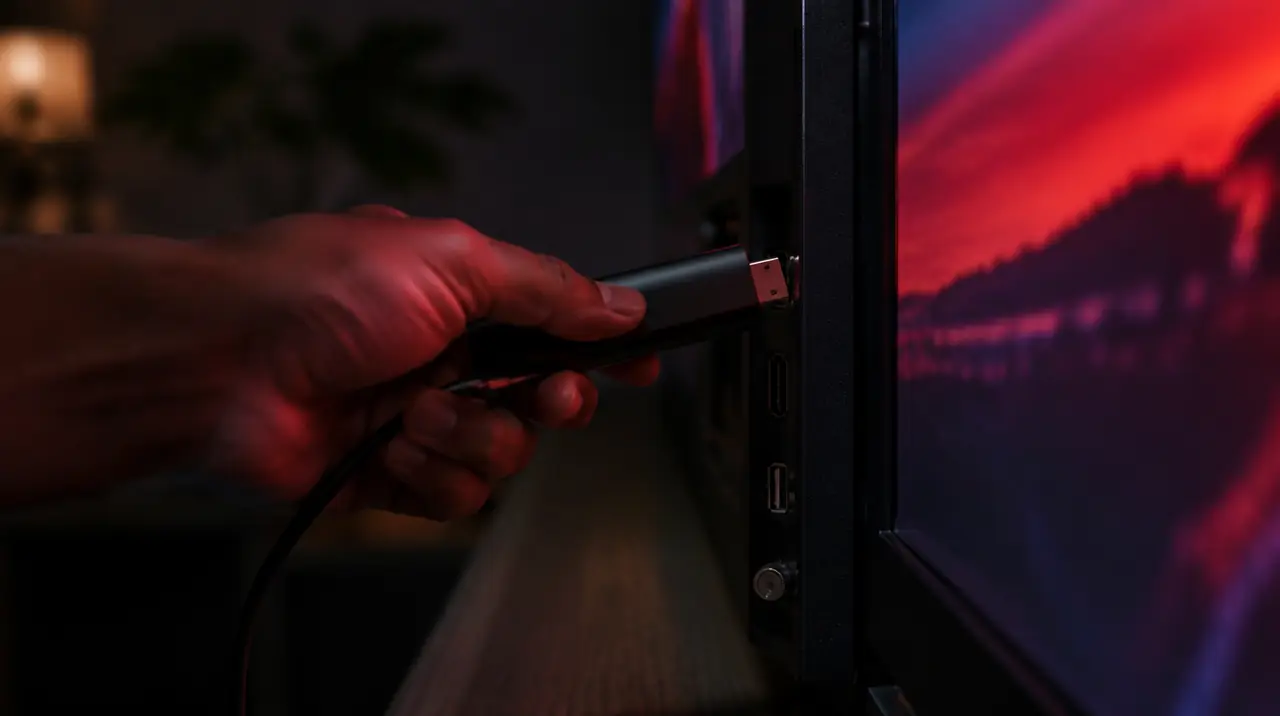
If your goal is IPTV, a streaming stick that runs a more open operating system is the straightforward fix. A Fire TV Stick uses Fire OS, which accepts apps from the Amazon Appstore and, with a settings change, from other sources. The path on a Fire TV is Settings > My Fire TV > Developer Options > Install unknown apps, then allow the installer you use. Our guide on setting up IPTV on a Firestick walks through it. A Google TV streamer or Android TV box gives you the Google Play store and wider choice. An Apple TV works well if you are in the Apple ecosystem; see IPTV on Apple TV.
The wider comparison, with Ethernet and memory considerations, is in our best IPTV box guide. If you want to understand the difference between login types before you pick, read about Xtream Codes and M3U logins.
A budget example: a household with a Roku on the main TV and no IPTV player option adds a Fire TV Stick on the same TV, keeps the Roku for its own apps, and runs one screen of IPTV at CA$79 for 12 months. That is about 65% less than paying the CA$19 one-month price twelve times (CA$228). A second screen for the bedroom raises the plan to CA$129 for 12 months. New customers also get 2 bonus months on 12-month plans. See pricing for the full table.
If this happens, do this
- If the player is not in the Roku store, do not hunt for workarounds. Add a Fire TV stick or use mirroring for the evening.
- If an app was in the store and disappeared, apps can be withdrawn by their developers or by Roku. Check your Roku account’s channel list, then look for a replacement or switch device.
- If someone offers a Roku “channel code” or developer-mode steps, treat it with caution. Unvetted code you install on your TV is outside Roku’s checks. Ask us first if you are unsure.
- If the mirrored picture stutters, bring the phone closer to the router, close other apps, and see our guide on fixing IPTV buffering.
Our view, and what we do and do not offer
My IPTV Canada supports devices where we can give proper setup guidance: Fire TV, Android and Google TV boxes, Apple TV, Formuler and MAG boxes, Windows and Mac, phones and tablets. We do not promise a Roku app. If your household is Roku-only today, message us with your model before you buy anything, and we will tell you plainly what will and will not work. You can compare device options on our devices page.
If you try us and the setup does not work on the equipment you have, the 60-day money-back guarantee runs from first paid activation. For background on how internet-delivered TV works and why app availability depends on the platform, the Wikipedia IPTV page is a useful read.
Quick answers by situation
- I own a Roku and nothing else: check the store; if empty, buy a stick.
- I am buying new: skip Roku for IPTV; choose Fire TV, Google TV or Apple TV.
- I have one night: mirror from a phone.
- My TV has Roku built in: plug a stick into a spare HDMI port and switch inputs.
Frequently asked questions
Can you use IPTV on a Roku in Canada?
Only if an IPTV player is listed in the Roku Channel Store for your device and account. Roku does not run Android apps, so options are limited. If nothing suitable is listed, use screen mirroring for a short time or add a Fire TV stick or Google TV box.
Why is there no IPTV app on my Roku?
IPTV players are mostly built for Android, iOS or Windows. A player must be built specifically for Roku and approved for the Channel Store, and availability varies by country. Many popular players simply are not published for Roku.
How do I add an app to my Roku?
Press Home, choose Store then Apps, find the app and select Add app. You can also add it at channelstore.roku.com while signed in, or in the Roku mobile app. If it does not appear, go to Settings, System, System update, Check now.
Can I mirror my phone to a Roku to watch IPTV?
Yes. Android phones can use screen mirroring, and many newer Roku models support Apple AirPlay for iPhones. It works as a stopgap, but the phone must stay on and close to the router, so it is a poor everyday setup.
What is the cheapest way to get IPTV on a Roku TV?
Plug a Fire TV stick or similar streaming device into a spare HDMI port on the Roku TV and switch inputs. It costs far less than a new TV and gives you full player choice while keeping Roku for its own apps.
Is Roku or Firestick better for IPTV?
Firestick, by a wide margin. It runs Fire OS, which supports many IPTV players and sideloading with a settings change. Roku is excellent for mainstream streaming but restricts apps to its own store.
Sources
Your next step
Test the channels you actually watch.
Tell us your device, languages and preferred channels. We will help confirm availability and set up a free 24-hour trial. Read the plan and guarantee terms before paying.
Useful for someone else?
Share the guide without losing the context.