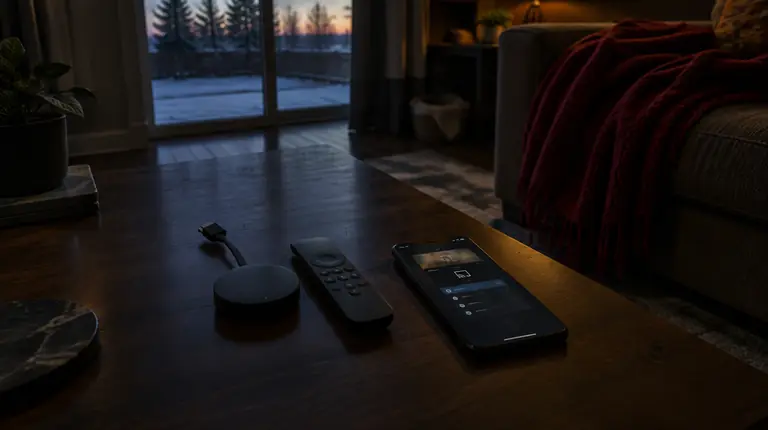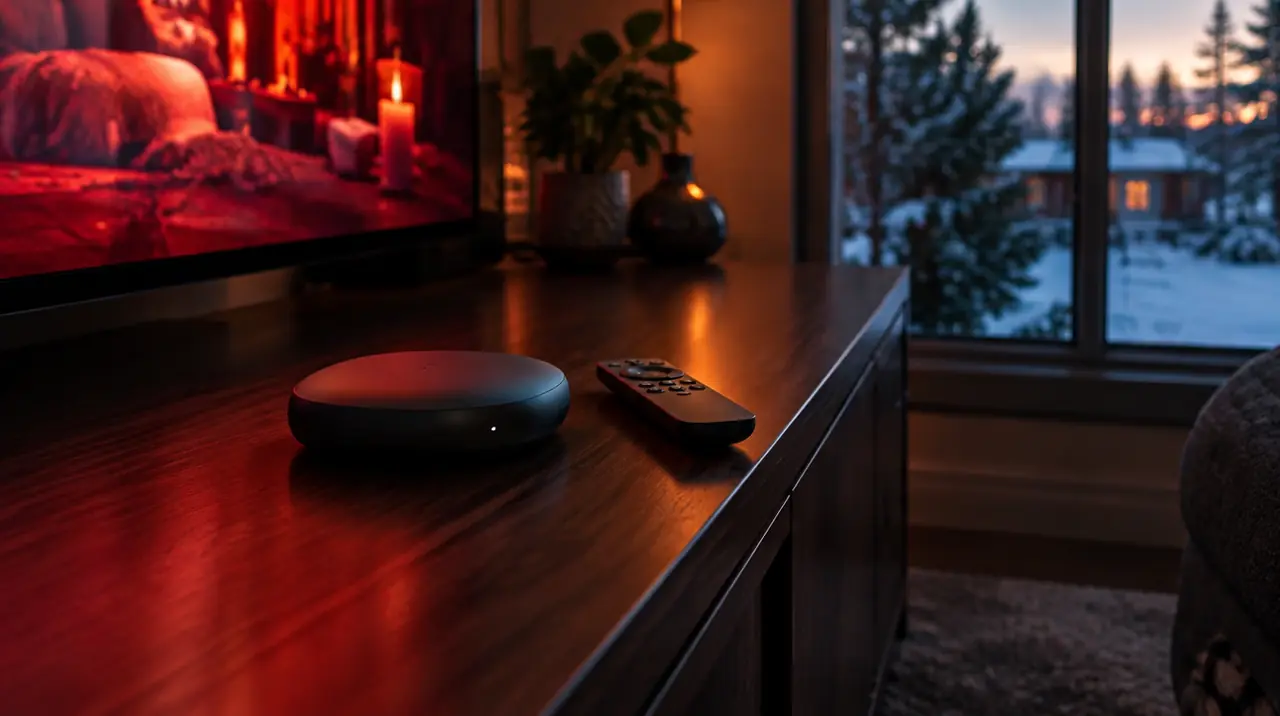
On a Google TV Streamer (or a Chromecast with Google TV), you install an IPTV player straight from the Google Play store on the TV, sign in with the login your provider gave you, then check network, clock and display settings so the guide and picture behave. The whole job takes about 15 minutes. The only trap is the old Chromecast without a remote, which cannot install apps at all.
First, confirm which Chromecast or Google box you own
Google has sold three very different things under similar names, and only two of them can run an IPTV app.
| Device | Has a remote and app store? | Can install an IPTV player? |
|---|---|---|
| Google TV Streamer | Yes | Yes, from Google Play |
| Chromecast with Google TV (HD or 4K) | Yes | Yes, from Google Play |
| Older Chromecast (no remote) | No | No. It only receives video cast from a phone |
If your Chromecast came with a small voice remote and shows a home screen of app tiles, you have Google TV. If you control it only from a phone, you have the older cast-only model, and the better move is a Fire TV Stick or a Google TV Streamer. The Google TV Help Center lists the models and their features.
Google TV is Google’s interface on top of Android TV. It uses the same app engine (see Wikipedia’s Android TV article for the background), which matters because most IPTV player apps built for Android TV work here without changes. For the broader Android TV picture, see IPTV on Android devices.
Before you start: what to have in hand
- The Google TV Streamer or Chromecast connected to your TV and signed into a Google account (needed for Google Play).
- Your login from the provider. It usually arrives as either an Xtream-style set of three values (server URL, username, password) or an M3U playlist link. If you are unsure which is which, read Xtream Codes vs M3U explained.
- A phone or laptop nearby, because typing a long URL with a TV remote is miserable. Copy it to a note or email yourself so you can read it off the screen.
Choosing a player for Google TV
Pick by what you want from the app, not by which name you saw first.
- TiviMate: a guide-first player that looks like a cable box, with grouped channels, favourites and a well-regarded program guide. Its free tier is limited and the premium features are a paid upgrade. Full walkthrough in the TiviMate setup guide.
- IPTV Smarters Pro: accepts Xtream-style logins directly with a form, which suits anyone who does not want to paste an M3U.
- VLC for Android TV or similar generic players: works with an M3U link but gives you a plain list without a proper guide.
My recommendation: if you have an M3U link or an Xtream login and care about browsing, install TiviMate. If you want the fastest possible first test, Smarters Pro is quicker to get on screen. You can install both and keep the one you prefer, since they do not interfere with each other. Whichever you pick, avoid installing five players in a row; each one stores its own playlist and cache, and the Streamer’s storage is limited.
Installing and signing in, step by step
- From the Google TV home screen, select Search (magnifier icon, top left) or press the microphone button on the remote and say the app’s name.
- Choose the app from the results and press Install. If the app does not appear under Apps, check you are signed in; the store only shows apps that suit your device.
- When the button changes to Open, launch the app. If you see a prompt asking to allow storage or notifications, allow it. Some players need storage to cache the guide.
- Choose the login type your provider gave you. For Xtream, enter the server URL (including
http://orhttps://and the port if given), then username and password. For M3U, paste the full link. - Wait while the app loads channels. A big list can take a minute the first time. The screen should then show your channel groups. If it shows an empty list or an error, go to “If this happens” below.
- Open one live channel and let it play for a couple of minutes to confirm sound and picture are stable before you tidy up favourites.
Three settings worth checking right away
1. Network
Open Settings (profile icon, top right, then the gear) and go to Network & Internet. Confirm you are on the 5 GHz network and the signal is strong. The Google TV Streamer has an Ethernet port; use it if the TV is near the router. A cable is more reliable than any wireless link, which the Wi-Fi vs Ethernet guide explains in detail.
2. Date and time
Go to System and then Date & time. Set the time zone correctly and turn on automatic date and time. This is the number one reason a program guide appears shifted by an hour or two, because the guide data is stamped in absolute time and your device converts it using the zone it believes it is in. Canada spans six time zones, plus Newfoundland’s half-hour offset, so a wrong zone is easy to miss.
3. Display
Under Display & Sound, check the resolution matches your TV and, if offered, enable frame-rate matching so 24 and 50 or 60 fps content does not judder. If you see black bars or a cropped picture, adjust the aspect setting in the player’s own settings rather than the TV’s. Some 4K TVs also need HDMI enhanced mode turned on for the HDMI port in the TV’s settings, or high-bitrate streams will drop out.
If your player is not in Google Play
Some players are not listed in Google Play on every account or region. Google TV does allow installing apps from outside the store, but only enable it if you must, and only from a source you trust. The path is typically Settings > Apps > Security & restrictions > Unknown sources, where you allow the specific installer app (for example a file manager or Downloader) rather than everything. Labels shift between Google TV software versions, so use the Settings search if you do not see this path.
The safer routes are to use a player that is on the store or to switch to a Fire TV where this process is well documented.
A five-minute acceptance test before you call it done
Do not judge the setup by the first channel you open. Run through this short list on a weeknight evening, when your home network is busiest:
- Open a live channel you actually watch and leave it for ten minutes. Note any freezes.
- Switch channels five times. Each change should settle in a few seconds; a delay of 10 seconds or more every time points to a weak connection or an overloaded device.
- Open the guide and scroll two hours ahead. If it is empty or an hour off, fix the time zone first.
- Pause and rewind a live channel if the player offers it, then resume. Behaviour here depends on the provider and player, so treat it as a bonus, not a given.
- Back out to the home screen and return to the app. It should reopen on your last channel without asking you to sign in again.
If any step fails, you have found the weak link while you still have your 60 days of protection, not three weeks into a subscription you cannot unwind.
If this happens, do that
- If login fails or the list is empty, re-type the details slowly. A single trailing space or a missing
http://breaks the server field. Copy-paste from a note rather than typing on screen. - If channels load but the guide is blank, give it a few minutes, then refresh the guide in the app’s settings. Persistent problems are covered in the EPG not loading fix.
- If video stutters on one channel only, that channel’s source is probably the problem. Try another channel in the same category to confirm.
- If video stutters everywhere, move to Ethernet, or restart the router and the Streamer. See the buffering guide.
- If the app crashes or loads slowly after weeks of use, open Settings > Apps > See all apps, select the player and choose Clear cache. Avoid Clear data unless you are happy to sign in again.
- If audio and picture drift apart, try a different audio track or output setting in the player; the output setting (stereo versus passthrough) is usually the culprit.
Remote and voice tips that save time
The Google TV remote has a microphone button that launches voice search, which can open installed apps by name. You can also configure a button shortcut in some Google TV versions so the YouTube or Netflix button opens something else; not every remote lets you, so treat this as a perk, not a promise. For quick channel switching inside TiviMate, the number pad on a phone remote app or a Bluetooth keyboard speeds up typing channel numbers.
If more than one person uses the TV, create separate Google TV profiles. Players keep their own login, so a profile switch will not log anyone out of the IPTV app, but each person gets their own watchlist on the Google side.
Choosing a plan for a Google TV setup
A Google TV Streamer takes one connection while it is playing. If you have a second TV in a bedroom or basement, that is a second simultaneous stream. At My IPTV Canada, one screen costs CA$19 for one month, CA$29 for three, CA$49 for six and CA$79 for twelve. Two screens run CA$29, CA$49, CA$89 and CA$129. New customers receive bonus months on the longer terms: +1 on three and six months, +2 on twelve. Paying CA$79 for twelve months on one screen costs 65% less than paying CA$19 every month for a year (CA$228).
Before paying, ask on WhatsApp to confirm which login type works with the player you chose and whether a specific channel or event you care about is there. You also have a 60-day money-back guarantee from your first paid activation. Details are on the pricing page, and the full list of supported equipment on the devices page.
Frequently asked questions
Can I install IPTV on a Google TV Streamer?
Yes. The Google TV Streamer runs Google TV, so you install a compatible IPTV player from Google Play, then enter the Xtream-style login or M3U link your provider gave you. The whole process normally takes about 15 minutes, including a quick check of network and time settings.
Does Chromecast with Google TV work for IPTV?
Yes, if it is the Chromecast with Google TV that comes with a remote and an app store. IPTV players install from Google Play just as they do on the Google TV Streamer. The older Chromecast with no remote cannot install apps and only receives video cast from a phone.
What is the best IPTV app for Google TV?
For browsing and a cable-box-style guide, TiviMate is a popular choice. For a simple form that accepts Xtream-style logins, IPTV Smarters Pro is quick to set up. Both install from Google Play on most Google TV devices, and you can try each before settling on one.
Why is my IPTV guide an hour off on Google TV?
The most common cause is a wrong time zone or automatic date and time turned off. Open Settings, System, Date and time, and select your zone with automatic time enabled. Then refresh the guide in the player. Daylight saving changes can also shift guides briefly.
Should I use Ethernet with a Google TV Streamer?
If the TV is near your router or you can run a cable, yes. The Streamer has an Ethernet port, and a wired link avoids the Wi-Fi interference that causes freezing during live sports. If a cable is not possible, use the 5 GHz network.
How do I clear the cache for an IPTV app on Google TV?
Go to Settings, Apps, See all apps, select the player, then choose Clear cache. This frees temporary files without deleting your login. Choose Clear data only as a last resort because it signs you out and removes saved playlists, favourites and settings.
Sources
Your next step
Test the channels you actually watch.
Tell us your device, languages and preferred channels. We will help confirm availability and set up a free 24-hour trial. Read the plan and guarantee terms before paying.
Useful for someone else?
Share the guide without losing the context.