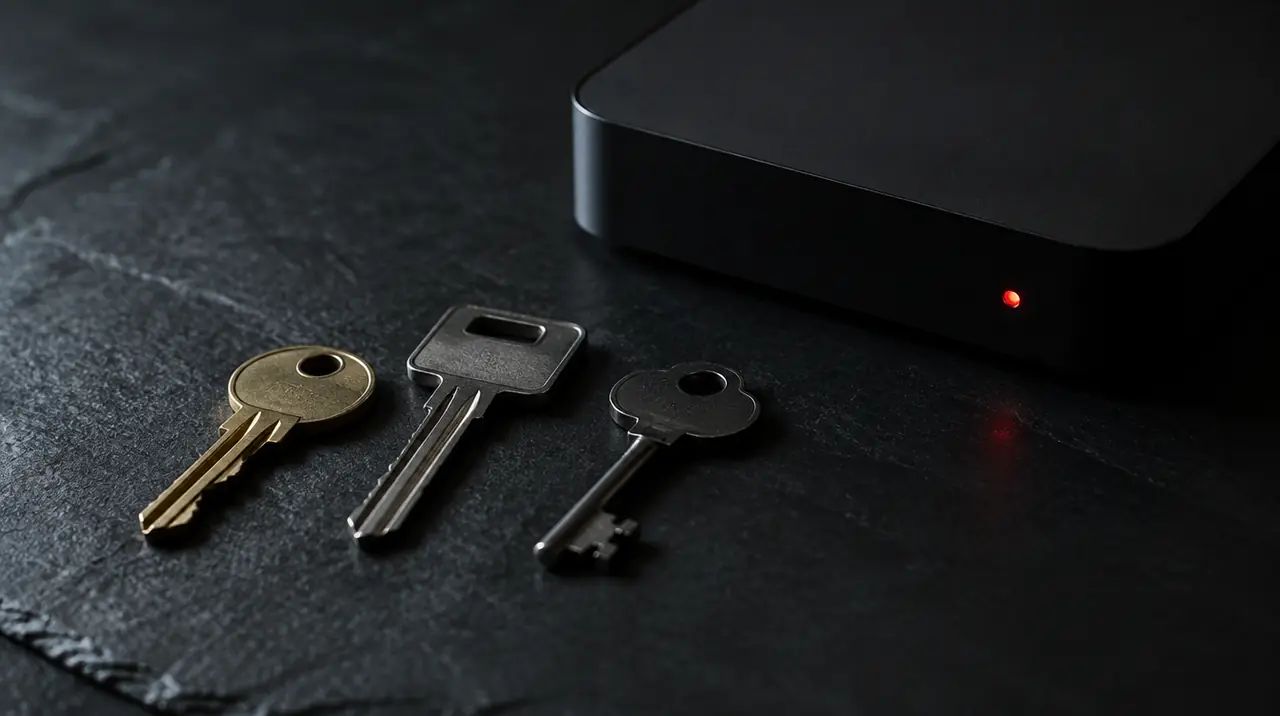
Use the login format your app asks for, and prefer the Xtream-style one (server address, username, password) whenever the app offers it. It loads channels, categories, movies and the TV guide in a structured way, while an M3U link is a single playlist file and a portal login is tied to your box’s MAC address. All three are secrets: each one lets whoever holds it use your connections, so treat them like a bank PIN.
The three formats in one table
| Format | What you enter | Typical apps and boxes | Strength | Weakness |
|---|---|---|---|---|
| Xtream-style login | Server address (with port), username, password | IPTV Smarters-style apps, TiviMate, many Android TV and Fire TV players | Categories, movies, series and guide load as structured data; easy to re-sync | Not every app supports it |
| M3U playlist link | One long web address | VLC, Kodi, many TV apps, Windows players | Works nearly everywhere | One big file; weak on movies, series and guide; slow when large |
| Portal with MAC address | A portal URL; your device’s MAC address registered with the provider | MAG-style and Formuler-style set-top boxes | Box-native interface; no typing a password | Tied to one device; MAC must be registered correctly |
Xtream-style login, explained
The name comes from a software panel many services run on their back end. For you, it means three fields:
- Server address. Looks like a web address, often starting with http:// and ending with a port number after a colon, for example :8080. Enter it exactly as given, including the port.
- Username and password. Case-sensitive. Copy and paste them rather than retyping.
When your app logs in, it asks the server for the list of live categories, the list of channels in each, movies, series and the guide, then builds its own menus. That is why Xtream-style logins tend to give the best result: you get categories, posters, search and a guide without importing a file. It also makes re-syncing a one-button job when channels change.
Where you enter it
Apps word it differently. Look for “Add user”, “Login with Xtream codes API”, “Xtream” or “Add playlist”. The common mistake is to choose “Load playlist or file” and paste a server address there, which then fails. For app-specific walkthroughs see our guides to IPTV Smarters Pro and TiviMate.
M3U playlist links, explained
M3U is a plain text file format for playlists. Each entry has a line of information (name, group, logo, guide ID) and a line with the stream address. The format is old and simple, and it is why VLC and Kodi can read a playlist from nearly any source. Wikipedia has a neutral summary of the M3U format.
A provider usually gives you the link as a long address that already contains your username and password inside it. You paste it into an app that supports playlists, and the app downloads the file and shows the channels.
Where it falls short: a large playlist is one big download, so slow connections or low-memory boxes struggle. Movie and series libraries are poorly organized in plain M3U. The guide comes from a separate address, called an XMLTV or EPG link, so you may need two links instead of one. If the guide is the problem, see our EPG fix checklist.
Portal and MAC address logins, explained
Some set-top boxes work differently. A portal is a web address the box connects to at start-up. The provider recognizes the box by its MAC address, a hardware identifier printed on a label and shown in the box’s settings, and serves its channels to that box alone. MAG-style boxes use this approach, and Formuler boxes have their own portal variant. There is no username or password to type, which feels simpler, but the provider has to register the correct MAC first.
Practical rules for portal logins:
- Send the exact MAC from the box’s settings page, not from a sticker that might be for a different interface. Check every character, since one wrong digit means nothing loads.
- A portal login is tied to that device. If you replace the box, you will need the new MAC registered.
- Do not publish the MAC or portal address anywhere public.
Our guides on setting up a Formuler Z box and setting up a MAG box go through the box-side steps.
Which format should you use?
- Does your app offer an Xtream or “login” option? Use it. This applies to most Fire TV, Android TV and phone apps.
- Is your app a plain media player such as VLC or Kodi? Use the M3U link, plus a guide link if you want one.
- Is your device a portal-style box? Use the portal and MAC route, and ask your provider to register your MAC.
- Does your TV only have a limited built-in app store? Check which format that app supports before you pay, since Samsung and LG TVs install apps only from their own stores.
Ask your provider, in writing, which of the three formats your plan includes. We can confirm which ones apply to a My IPTV Canada plan on WhatsApp.

Reading an M3U file: what each part does
You rarely need to open one, but knowing the layout makes errors easier to read. A playlist looks like this (placeholder values only):
#EXTM3U
#EXTINF:-1 tvg-id="channel.id" tvg-logo="logo.png" group-title="News",Channel Name
http://example.com:8080/live/username/password/12345.ts- #EXTM3U marks the file as a playlist. If a download starts with something else, such as an HTML page, the link returned an error instead of a playlist.
- #EXTINF carries the channel’s display name, its group (the category in your app) and a guide ID. The guide ID is what the app uses to match the channel to the TV guide; when it does not match, that channel shows “No information”.
- The address line under it is the stream itself. In many playlists it contains your username and password, which is exactly why the whole file is sensitive.
That last point is the practical lesson. A playlist you “just share with a friend” shares your login. Keep the file out of cloud folders and chat apps.
Switching formats without starting over
If your first attempt fails, change one thing at a time. Keep the same credentials and try the other format in the same app, or the same format in a different app. Do not mix: pasting a server address into a playlist field, or a playlist link into a username field, is the most frequent reason for “invalid” errors. When you move from a plain player to a fuller app (say from VLC to a dedicated IPTV app), expect better organization of movies and series, a guide, and faster channel switching, but also a longer first sync as the app builds its menus. Give a large library several minutes the first time, and leave the app open while it works.
Moving from a portal box to an app? That is a new login, not a transfer. The portal registration stays with the box, and the app will need Xtream-style or M3U details instead. Ask support for those before you retire the old box.
Keep your login safe
All three formats are bearer credentials: whoever has them can stream on your plan. The practical consequences:
- Do not paste your link into “playlist converter” or “tester” websites. The site receives your username and password in the process.
- Do not post screenshots of setup screens in forums or chat groups. A tiny part of a link is enough.
- Be careful on public Wi-Fi. Many server addresses use plain http, so details travel without encryption. Set up at home and avoid logging in over a café or hotel network.
- Know how to rotate. If you suspect a leak, contact support and ask for new credentials. Do not wait for a surprise.
- Delete the text file where you stored the details once the app works, or keep it in a password manager.
Separate credentials per connection, where a plan provides them, mean a leaked login affects one connection, not the whole account. Ask support if your plan offers that. A VPN does not change any of this.
Common login errors and fixes
| Message or symptom | Likely cause | First fix |
|---|---|---|
| Authentication failed or invalid login | Typo, wrong case, trailing space | Paste again from the original message; check each field |
| Cannot reach server | Missing or wrong port, no internet, wrong address | Check that the port number is included; test the internet with a browser |
| Empty channel list after login | Playlist still loading, or the login is for another format | Wait a few minutes; confirm the format with support |
| Works on one device, not another | Connection limit reached | Close the app on other devices; see our connections guide |
| Channels load but no guide | No guide link entered or wrong time zone | Add the guide address; check device time zone |
| Portal box shows an activation screen | MAC not registered or mistyped | Send the exact MAC to support |
If X, do Y
- If the same login works in a phone app but not on the TV: the TV app may not support that format. Try the other format or another app.
- If a copy-and-paste keeps failing: paste into a plain text editor first, remove line breaks and spaces, then copy again.
- If everything fails on a new network: some public and guest Wi-Fi networks block certain ports. Test on your home internet.
Whether any particular service is lawful depends on its content source and licensing, not on which login format it uses. Read our plain-language explainer before choosing a provider.
What to expect from us
Choose your plan on the pricing page; activation is instant once payment is confirmed on WhatsApp, and our team can help with login format questions in English or French through the contact page. Eligible new paid subscriptions have a 60-day money-back guarantee from first paid activation, which lets you confirm that your device and login format work together.
Frequently asked questions
What is the difference between Xtream Codes and M3U?
Xtream-style login uses a server address, username and password so the app can load channels, movies and the guide in a structured way. An M3U link is one playlist file that the app downloads. Xtream is usually richer; M3U works in more players.
Which is better for IPTV: Xtream Codes or M3U?
Use Xtream-style login if your app offers it, because it gives categories, movies, series and guide data without importing a big file. Use M3U for plain players such as VLC or Kodi, and portal logins only for portal-style boxes.
What is a portal URL and MAC address in IPTV?
A portal is an address that a set-top box contacts at start-up. The provider recognizes the box by its MAC address, a hardware identifier, and serves channels to that box only. Send the exact MAC from the box settings to your provider.
Why does my M3U link not work?
Common causes are a stray space or line break from copying, an app that expects an Xtream login instead, or a connection limit already in use on another device. Paste into a plain text editor, clean it, and try again. Contact support if it still fails.
Is it safe to share my IPTV login or M3U link?
No. The link or login lets whoever holds it use your connections. Do not paste it into converter websites or post screenshots. If you think it leaked, contact support and ask for new credentials.
Do I need a separate guide link for M3U?
Often yes. An M3U playlist lists channels, but the TV guide usually comes from a separate XMLTV or EPG address. Xtream-style logins normally carry the guide automatically. Ask your provider which links your plan includes.
Sources
Your next step
Test the channels you actually watch.
Tell us your device, languages and preferred channels. We will help confirm availability and set up a free 24-hour trial. Read the plan and guarantee terms before paying.
Useful for someone else?
Share the guide without losing the context.