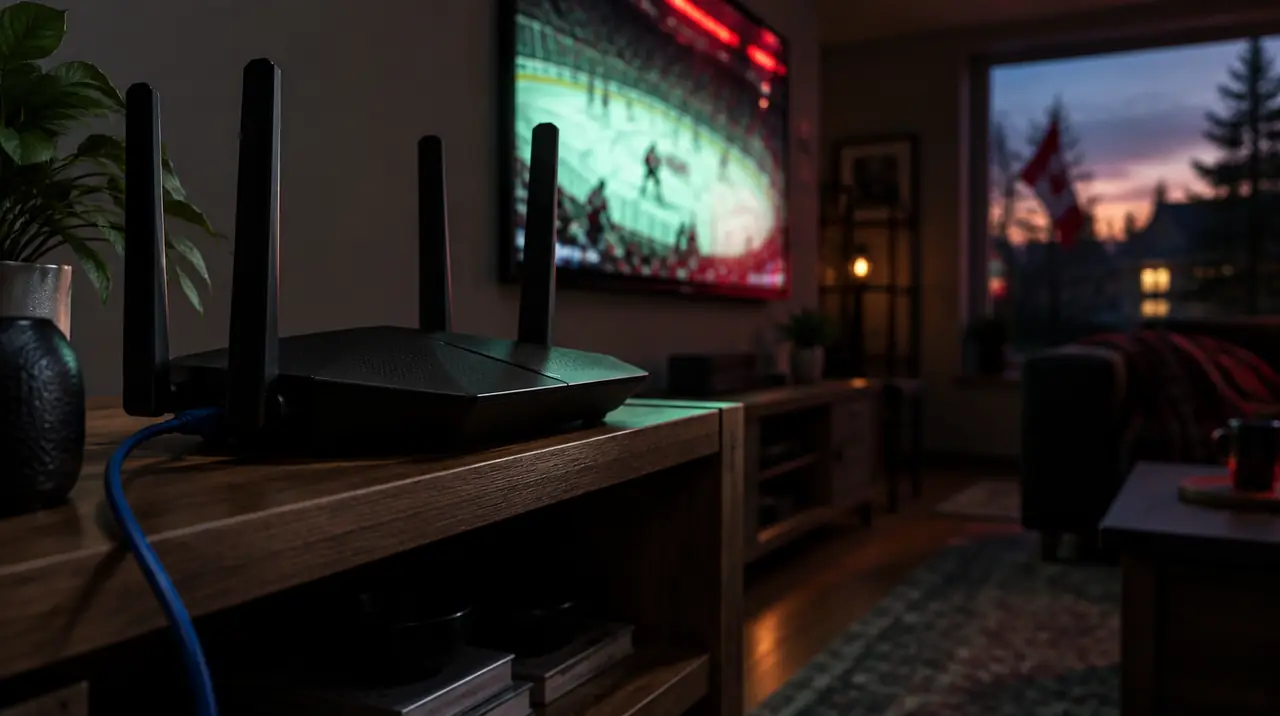
The router settings that matter most for IPTV are few: put your streaming device on the 5 GHz band (or better, a cable), set the 2.4 GHz band to channel 1, 6 or 11 at 20 MHz width, use a non-DFS 5 GHz channel, and turn on smart queue management (SQM) or a basic QoS rule if your router offers it. Everything else people tweak, from MTU to multicast, does nothing for IPTV delivered over the internet.
Most IPTV buffering blamed on the provider is actually the last 10 metres: a TV on the far side of a house, sharing a crowded 2.4 GHz channel with the neighbours. This guide covers what to change, in what order, and what to leave alone. If you do not yet know whether the problem is your Wi-Fi or your internet plan, start with our buffering diagnosis guide and come back here once you know it is the home network.
What your router actually does with an IPTV stream
A subscription like ours reaches your TV as ordinary unicast internet traffic: one stream per screen, pulled over HTTP from a server on the internet. That is different from the multicast IPTV some telecom companies run on their own managed boxes, which is where advice about IGMP snooping and VLAN tagging comes from. If a forum thread tells you to configure IGMP proxy for a Firestick, it is describing a different product.
What this means in practice: your router only needs to move packets quickly and consistently. Three things break that. Radio interference on Wi-Fi, a router that queues too much traffic when the line is busy (bufferbloat), and a weak or slow DNS lookup at the start of each stream. Each has a fix below.
Before you touch anything
- Photograph every settings page you are about to change. Wi-Fi settings are easy to scramble and not always obvious to undo.
- Know who owns the box. Rogers, Bell, Telus, Vidéotron, Cogeco and Eastlink all supply a combined modem and router, and the menus on those gateways are often trimmed. If a setting below is missing, it is probably locked by the provider, not hidden.
- Change one thing, then test for two evenings. Peak time, roughly 7 to 10 pm local, is when problems show. A test at 2 pm proves nothing.
- Log in properly. Most routers answer at 192.168.1.1 or 192.168.0.1; the address and default password are on the label. Rogers, Bell and Telus gateways also have an app.
Step 1: Pick the right band and channel
This is where most households win or lose. Wi-Fi in Canada uses two main bands, and they behave very differently.
| Trait | 2.4 GHz | 5 GHz |
|---|---|---|
| Range through walls | Better | Worse |
| Crowding in apartments | Heavy (microwaves, Bluetooth, every neighbour) | Light |
| Usable non-overlapping channels | Three: 1, 6, 11 | Many more |
| Good for | Smart plugs, a TV two floors from the router as a last resort | Any TV in the same or next room |
Log in, find the wireless page, and check three values.
- 2.4 GHz channel: set it to 1, 6 or 11 manually. “Auto” often parks on 3 or 8, which overlaps two neighbours at once. Set channel width to 20 MHz. Forty megahertz doubles the footprint and invites collisions.
- 5 GHz channel: choose 36, 40, 44 or 48, or 149 to 165. Channels 52 to 144 are DFS channels; the router must leave them when it detects radar, and the TV drops the stream for up to a minute while it hops. If your picture freezes at odd times, a DFS channel is a prime suspect, especially near airports and coastal weather radar.
- 5 GHz width: 80 MHz is fine in a house. In a dense condo, try 40 MHz if you see drops.
If the channel menu offers only “Auto” (common on provider gateways), leave it and move to the next steps. Do not fight a locked box for hours.
Step 2: Separate the bands for your TV
Many routers merge both bands into one network name and use “band steering” to decide where each device lands. That works for phones. For a streaming stick it can leave the device stuck on 2.4 GHz after a brief dip, because it does not roam back.
The fix: give the bands different names, for example “Home” and “Home-5G”, and connect the TV device to the 5 GHz one. On Fire TV, that is Settings > Network, pick the network, and forget the old one first. You are trading a bit of convenience for a stream that stays where you put it.
Step 3: Stop the line from choking under load
Run a speed test during a busy evening, then again while someone uploads a video or a console downloads a game. If your ping jumps from 20 ms to several hundred, the router is queuing packets in a deep buffer. That is bufferbloat, and it is what makes a live stream stutter the moment a second person gets on the network.
Two fixes, in order of preference:
- SQM, also called Smart Queue, fq_codel or CAKE. Found on OpenWrt, Asus (Adaptive QoS and newer firmware), Ubiquiti, Synology, and many mesh systems. Set the download and upload limits to about 85 to 90 percent of what a wired speed test shows. Slightly lower speed, far steadier stream.
- Basic QoS or device priority. Put the streaming device at the top. Old “application QoS” lists that guess by traffic type are less effective than a simple per-device rule.
Keep your expectations modest. QoS manages a line that is already full. It cannot add speed; for how much speed you need, read our internet speed guide for IPTV.
Step 4: Try a different DNS
DNS turns a server name into an address. A sluggish provider DNS adds a pause when a channel starts, not during playback, so it matters if channel changes feel slow but the picture is fine after it loads. In the router’s WAN or Internet settings, set DNS to a public resolver such as 1.1.1.1 and 1.0.0.1, 8.8.8.8 and 8.8.4.4, or 9.9.9.9. Save, reboot, and compare channel start time over a couple of evenings. If nothing changes, switch back; this is a small win, not a cure. Background on how it works is on Wikipedia’s DNS article.
Step 5: Firmware and a reboot rhythm
Update the firmware if your router is user-managed. Provider gateways update themselves, so you cannot do much. A router that has run for months with a full connection table can slow down; a scheduled weekly reboot at 4 am, available on many Asus, TP-Link and Netgear models, is cheap insurance. Do not schedule it for prime time.
Settings you can ignore
- IGMP snooping, IGMP proxy, multicast: built for telecom-managed IPTV, not internet streaming.
- MTU tweaks: default 1500 (1492 for PPPoE) is correct for nearly everyone.
- Port forwarding, DMZ, UPnP for the TV: streams are outbound. Opening ports adds risk and no speed.
- “Turbo” or “boost” Wi-Fi modes: mostly marketing, occasionally unstable.
If this happens, do this
- Freezes every few minutes on 5 GHz, then recovers: move off any DFS channel (52 to 144) to 36 to 48 or 149 to 165.
- Great on 5 GHz in the living room, unusable in the basement: signal, not settings. Run an Ethernet cable, or add a wired access point. A powerline adapter is a decent second choice in older homes with copper wiring, a poor one on shared circuits.
- Fine until a family member starts a video call: enable SQM or device priority (Step 3).
- Slow channel changes, picture fine once loaded: try DNS (Step 4).
- Everything fails only at 8 pm, speed test also drops: your provider’s network is congested. Call them; no router setting fixes that.
- Rural, on Starlink or fixed wireless: expect some variance. Use Ethernet from the dish router if you can, and lower the stream quality in the player rather than raising your hopes. Cottage setups are covered in our cottage and cabin TV guide.

The cheapest upgrade: cables
If the TV sits within reach of the router, a Cat5e or Cat6 cable beats every setting above and costs a few dollars. Fire TV Stick models lack an Ethernet port, but Amazon sells an official Ethernet adapter, and boxes such as the Nvidia Shield and many Android TV boxes include a port. Our comparison of Wi-Fi and Ethernet for IPTV goes through the trade-offs room by room.
Mesh, extenders and when to buy
A plug-in range extender halves your throughput, because it receives and retransmits on the same radio. A mesh system with a wired or dedicated backhaul does not. If you need more coverage, pick mesh with an Ethernet backhaul port, and place nodes roughly where the signal is still strong, not in the dead zone itself. A good rule: if the bar count on a phone in the TV room is two or fewer on 5 GHz, add a node, not another tweak.
Where we stand
If we had to pick one change for a typical Canadian home, it is cabling the main TV and putting the rest on a clean 5 GHz channel with separate band names. QoS comes second, DNS third. We would not buy a new router before trying these, unless yours is a single-band unit or more than six years old.
My IPTV Canada runs on any router that handles ordinary streaming, because the plan is unicast internet traffic and there is nothing to configure on our side. Check your supported device list, or read how the service works. If you are weighing a plan, remember the 60-day money-back guarantee applies from first paid activation, so you can judge streaming quality in your own house. Plans start at CA$19 for one screen for one month, or CA$79 for twelve (65% less than paying CA$19 every month for a year, one screen).
For deeper reading on how Wi-Fi bands and channels work, the Wi-Fi overview on Wikipedia and the entry on quality of service are reliable starting points.
Frequently asked questions
What is the best Wi-Fi channel for IPTV?
On 2.4 GHz use channel 1, 6 or 11 at 20 MHz width. On 5 GHz use 36 to 48 or 149 to 165 and avoid DFS channels 52 to 144, which can force a brief drop when the router detects radar. Better still, connect the TV by Ethernet.
Should I use 2.4 GHz or 5 GHz for streaming TV?
Use 5 GHz whenever the TV is in the same or next room as the router. It is far less crowded. Keep 2.4 GHz for devices far from the router or for smart-home gadgets. Give each band its own name so the TV does not stay on the slower one.
Does QoS help IPTV?
Yes, when your connection is shared. QoS or smart queue management keeps latency low while others upload or download, so the stream does not stall. Set limits near 85 to 90 percent of your measured wired speed. It cannot add speed to a plan that is too slow.
Do I need to change MTU, IGMP or port forwarding for IPTV?
No. Streams from an internet-based service are ordinary outbound unicast traffic. IGMP and multicast settings are for telecom-managed set-top boxes. Leave MTU at its default and do not open ports or use a DMZ for your TV device, because that adds risk without adding speed.
Can changing my DNS fix IPTV buffering?
Rarely. DNS affects how quickly a channel starts, not how smoothly it plays. If channel changes feel slow, try a public DNS such as 1.1.1.1 or 8.8.8.8 and compare over a couple of evenings. For mid-stream freezing, look at Wi-Fi channel, signal and bufferbloat instead.
Is my Rogers, Bell or Telus gateway good enough for IPTV?
Usually yes for one or two screens near the gateway. Provider gateways often lock channel and QoS menus, so weak coverage is the common limit. A cable to the main TV or a mesh system with wired backhaul solves most cases without replacing the gateway.
Sources
Your next step
Test the channels you actually watch.
Tell us your device, languages and preferred channels. We will help confirm availability and set up a free 24-hour trial. Read the plan and guarantee terms before paying.
Useful for someone else?
Share the guide without losing the context.