If your streaming box sits next to the TV and you can run or reach a network cable, use Ethernet: it removes the single most common cause of live-TV stutter, which is an unstable wireless link rather than a slow internet plan. If a cable is not practical, a strong 5 GHz Wi-Fi signal is fine for one or two streams, and a wired mesh node or a MoCA adapter beats a weak direct link to the router.
What a live stream actually asks of your network
A single HD live channel typically needs roughly 5 to 8 Mbps, and a 4K stream roughly 15 to 25 Mbps. Those are modest numbers next to the 50 to 1,000 Mbps plans sold by Canadian cable and fibre providers. Capacity is almost never the problem. Consistency is.
Live television has no room to hide a bad second. A movie on demand can buffer 30 seconds ahead and ride out a dip. A live hockey broadcast keeps only a few seconds in reserve, so a Wi-Fi hiccup that your phone would never show you becomes a frozen frame on the big screen.
| Household | Streams at once | Rough sustained need |
|---|---|---|
| Couple, one living-room TV in HD | 1 | 5 to 8 Mbps |
| Family, two HD TVs plus a 4K main TV | 3 | about 25 to 40 Mbps |
| Four screens, two of them 4K | 4 | about 40 to 60 Mbps |
Add whatever else is running: video calls, a game download, cloud backups. For a fuller sizing exercise, see how much internet speed IPTV needs. The point here is that even the largest row fits easily inside a typical home plan, so if you are buffering, the link between your router and the box is the first place to look.
Why Wi-Fi fails in ways a speed test does not show
A speed test measures the best moment over about 15 seconds. Streaming measures the worst moment over three hours. Wi-Fi is a shared radio channel, and a few things degrade it unevenly:
- Interference from neighbours. In a condo tower in Toronto or Vancouver, your 2.4 GHz band may share airtime with dozens of other routers. Only channels 1, 6 and 11 do not overlap, and everybody crowds onto them.
- Walls, floors and appliances. The 5 GHz band is faster and cleaner but loses more signal through plaster, concrete and the foil backing of insulation. Microwave ovens spill noise into 2.4 GHz.
- Retries. When a packet is damaged, Wi-Fi resends it. Throughput barely changes, but delay becomes uneven (jitter), and a live stream with a small buffer feels that.
- Taking turns. Wi-Fi devices share airtime. Your phone downloading an update in the next room competes with the TV.
Ethernet gives each device its own wire and full-duplex traffic, so none of this applies. A basic Cat5e cable carries gigabit speeds up to 100 metres, which covers any house in the country.
The options compared
| Connection | Strength | Weak point | Best for |
|---|---|---|---|
| Ethernet cable | Stable, low delay, no interference | Needs a cable run and a free port | Main TV, 4K, live sports |
| MoCA over coax | Uses the cable-TV coax already in the wall, near-wired behaviour | Needs adapters at both ends and a working coax outlet | Houses and condos with coax in each room |
| Mesh node with wired backhaul | Strong 5 GHz signal beside the TV | Needs a cable to the node | Large homes |
| 5 GHz Wi-Fi, direct | Fast and usually clean | Range and walls | Box within one or two rooms of the router |
| Powerline adapters | No new cable | Depends on old wiring quality, shared circuits | Last resort when nothing else is possible |
| 2.4 GHz Wi-Fi | Longest range | Crowded, slow, noisy | Only when 5 GHz cannot reach |
Powerline works by sending data over household electrical wiring, and results swing widely with the age of the wiring and what else is plugged in; the general technology is described in the Wikipedia overview of power-line communication. Test before you rely on it. Wi-Fi itself is a family of IEEE 802.11 standards, summarized at Wikipedia’s Wi-Fi article, and the wired alternative is covered under Ethernet.
My pick, by household
- One main TV in a house, router in the same room or an adjacent one: Ethernet. A 3 metre cable costs less than a lunch and is a one-time fix.
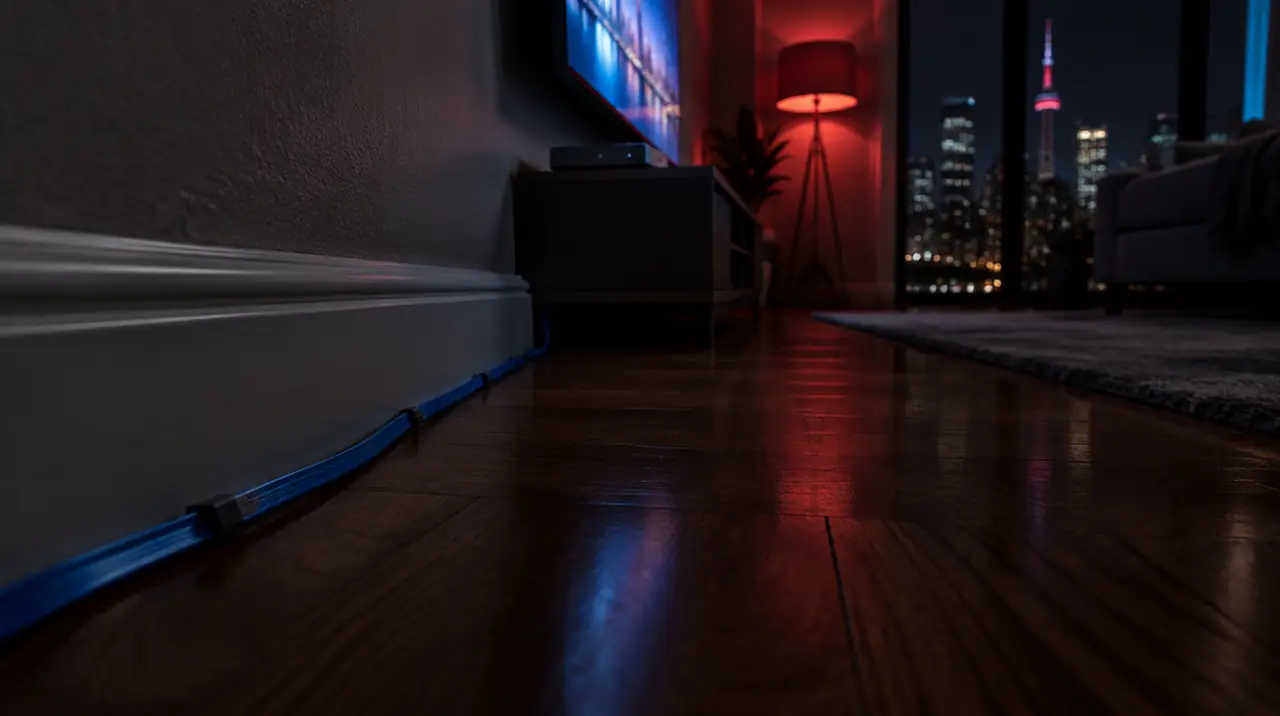
- Condo or apartment, router in the hall, TV in the living room: try 5 GHz Wi-Fi first. If it drops during the evening, when every neighbour is streaming, switch to a cable laid along the baseboard.
- Two-storey house with the router in the basement: a mesh node on the main floor, wired back to the router if you can, or MoCA if the walls have coax.
- Bedroom TV with an older stick: 5 GHz Wi-Fi is usually enough for one HD stream. Do not spend money here until you see a problem.
- Cottage on a rural or satellite connection: the dish or modem limits you more than the last room does. Keep the box on a cable to the router if you can, and read watching TV at a cottage or cabin for what to expect.
Getting a cable to your box
Not every streamer has an Ethernet jack. Check yours before buying a cable:
- Fire TV Stick: no port on the stick itself. Amazon sells an official Ethernet adapter that connects to the stick’s power input and powers it. The Fire TV Cube has a built-in port.
- Apple TV 4K: the higher-storage model includes Ethernet; the Wi-Fi-only model does not.
- Google TV Streamer: has an Ethernet port. The older Chromecast with Google TV needs an Ethernet adapter made for it.
- Formuler and most Android boxes: a built-in port is standard.
Practical cabling tips:
- Use Cat5e or Cat6 flat cable if you are running it along a baseboard or under a door. Flat cable is thin enough to hide under a rug.
- Keep it away from power cords where they run parallel for a long stretch.
- If your router has no free port, add a small unmanaged gigabit switch. It needs no setup: plug the router into any port, plug the box into another.
- After connecting, open the box’s network settings and confirm it shows a wired connection. Fire TV shows this under Settings > Network; Apple TV under Settings > Network.
If you cannot run a cable: improve the Wi-Fi first
- Check what the box sees. On Fire TV, Settings > Network lists signal strength beside your network name. Good means full bars at the TV, not at the router.
- Join 5 GHz on purpose. Many ISP gateways broadcast one name for both bands and decide for you. Give the 5 GHz band its own name in the router’s admin page and connect the TV to that.
- Move the router out of the cabinet. Routers hidden in a closet, or behind a TV, lose a surprising amount of range. Higher and more central is better.
- Change the channel. On 5 GHz, try a different channel in the router settings. On 2.4 GHz, stick to 1, 6 or 11.
- Place a mesh node in line of sight roughly halfway between the router and the TV, not at the edge of the weak zone. A node that receives a poor signal repeats a poor signal.
- Retest at 8 p.m., not at noon. Evening is when the building is busiest.
How to test a connection for live TV
A single speed test is not enough. Use this ten-minute check instead:
- Run a speed test from the box itself if an app is available (the Speedtest app by Ookla is on Fire TV and Android TV stores), then run it again two minutes later. A big swing between the two runs means an unstable link.
- Play a live channel for ten minutes in the evening. Note any freezes and when they happened.
- From a Windows laptop standing in the same spot as the TV, run
ping -t 8.8.8.8in Command Prompt for a few minutes. Occasional spikes into the hundreds of milliseconds, or “Request timed out” lines, point to Wi-Fi trouble. - Swap one variable at a time: cable, then 5 GHz, then position. Change one thing, then test again.
If this happens, do that
- If it buffers on Wi-Fi but a speed test looks great, assume interference or distance. Move to Ethernet or 5 GHz and retest.
- If it buffers even on Ethernet, the cause is elsewhere: another device saturating the connection, the ISP’s evening congestion, or the box itself. Work through fixing IPTV buffering.
- If only one channel or one event freezes, it is probably the source rather than your home network. Ask support to check that channel.
- If powerline drops out when the dishwasher runs, plug the adapters directly into the wall, not a power bar, or abandon powerline for MoCA or a mesh node.
- If the picture is fine for an hour then degrades, clear the app’s cache and restart the box; see clearing cache on Fire TV and Android TV.
Canadian home-network notes
Gateways from Bell, Rogers, Telus, Vidéotron, Cogeco and Eastlink often bundle router, modem and Wi-Fi in one box placed wherever the line enters the house, which is rarely the living room. That is why a cable or MoCA run to the TV matters so much in a typical bungalow or townhouse. In a high-rise, the opposite is true: the line enters near you, but every floor around you is broadcasting too.
If you are on satellite internet such as Starlink at a cottage or in a rural home, plug the box into the dish’s router with a cable whenever possible. Rain, snow and tree cover affect the satellite link itself, and you do not want Wi-Fi adding a second source of variation. For router tuning more broadly, see the best router settings for IPTV in Canada.
How this fits with your My IPTV Canada plan
Each connection on a plan is one screen watching at the same time, so a four-screen household should plan network capacity for four simultaneous streams. Our 1-screen plans run CA$19 for one month to CA$79 for twelve; 4 screens run CA$49 to CA$199. A wired main TV is the cheapest upgrade you can make to get full value from any plan, and our support team can help you work out which device in your home is the weak link. The 60-day money-back guarantee, counted from your first paid activation, covers you if the service itself is not right for your home. See pricing or how it works.
Frequently asked questions
Is Ethernet better than Wi-Fi for IPTV?
For a box that stays in one place, yes. A cable gives steady delay, no interference and no dependence on walls or neighbours' routers. Live TV has only a few seconds of buffer, so stability matters more than top speed. Good 5 GHz Wi-Fi can still work well for a single HD stream.
Is 5 GHz or 2.4 GHz better for streaming?
5 GHz is usually better for streaming because it is faster and less crowded, especially in condos and apartments. 2.4 GHz travels further through walls but is slower and shared with many devices. Use 2.4 GHz only if the TV is too far away for 5 GHz to reach.
Does a Fire Stick work with Ethernet?
Yes, with an Ethernet adapter that plugs into the stick's power port. Amazon sells one made for Fire TV Sticks, and the Fire TV Cube has a built-in jack. After plugging in, check Settings > Network to confirm the stick reports a wired connection.
Do powerline adapters work for IPTV?
Sometimes. Performance depends on the age of the wiring and what shares the circuit, so it can be excellent in one house and poor in the next. Plug adapters straight into wall outlets, test during an evening of normal use, and consider MoCA or a mesh node if it drops.
How much internet speed do I need for IPTV on Ethernet?
Plan on roughly 5 to 8 Mbps per HD stream and 15 to 25 Mbps per 4K stream, then add each screen that may watch at once. Most home plans exceed this comfortably, so a stable connection matters more than buying a bigger plan.
Will a mesh Wi-Fi system fix IPTV buffering?
It can, if the buffering comes from weak signal at the TV. Place a node roughly halfway between the router and the TV, in line of sight, and wire it back to the router if possible. A mesh will not fix a congested ISP or a source-side problem.
Sources
Your next step
Test the channels you actually watch.
Tell us your device, languages and preferred channels. We will help confirm availability and set up a free 24-hour trial. Read the plan and guarantee terms before paying.
Useful for someone else?
Share the guide without losing the context.