Whether an IPTV player app runs on your Samsung or LG TV depends on the model year. Samsung TVs run Tizen and LG TVs run webOS, each year ships a different version, and the TV’s own app store only lists apps built for that version. Find your model year, search the store, and if the app is missing, plug in a streaming stick instead of fighting the TV.
Samsung and LG are the two most common TV brands in Canadian living rooms, so this question comes up constantly. The honest answer is that a 2022 TV and a 2016 TV from the same maker behave like different devices. This guide shows how to read your model year, what to expect from each generation, how to install an app that is in the store, and when to stop and use a streaming device.
Tizen and webOS in one paragraph each
Samsung TVs run Tizen, a Linux-based operating system. Apps come from the Samsung Smart Hub store on the TV itself, built with web technologies and signed by Samsung. For ordinary owners there is no installing an APK or a file from a USB stick; that is the Android world. LG TVs run webOS, also Linux-based and also web-app based, with apps coming from the LG Content Store. Both are documented for developers on Samsung’s Smart TV developer site and LG’s webOS TV developer site, and background is on Wikipedia for Tizen and webOS.
What this means for you: you install from the TV’s store, and the store shows only what the developer has built for your platform version. If an app’s developer stopped updating for your year, you will not see it, and no setting can change that.
Step 1: Find your TV’s model year
Do this first, before searching for anything.
- Samsung: press Home, then Settings > Support > About This TV. Note the Model Code, for example QN65Q60BAFXZC, and the software version.
- LG: press the Settings (gear) button, then All Settings > General > About This TV (on some older sets, All Settings > Support). Note the model name and the webOS version.
- If the menu path differs, the label sticker on the back or side of the TV carries the same model code.
Then read the year from the code.
| Year | Samsung code letter | Samsung platform | LG code digit | LG platform |
|---|---|---|---|---|
| 2017 | M | Tizen 3.0 | 7 | webOS 3.5 |
| 2018 | N | Tizen 4.0 | 8 | webOS 4.0 |
| 2019 | R | Tizen 5.0 | 9 | webOS 4.5 |
| 2020 | T | Tizen 5.5 | 0 | webOS 5.0 |
| 2021 | A | Tizen 6.0 | 1 | webOS 6.0 |
| 2022 | B | Tizen 6.5 | 2 | webOS 22 |
| 2023 | C | Tizen 7.0 | 3 | webOS 23 |
| 2024 | D | Tizen 8.0 | 4 | webOS 24 |
The Samsung letter is the one after the screen size and series, as in QN65Q60BAFXZC. The LG digit is the one right after the series letters, as in OLED55C2PUA. Both conventions have held in recent years, but treat the table as a guide and trust the “About This TV” page if they disagree. Version numbers are a guide, not a promise of app support.
What to expect by generation
- 2021 and newer: best odds. These have the memory and processing for large channel lists and the latest app versions, and store apps tend to keep updating.
- 2018 to 2020: workable for many apps, but newer releases may skip them. Large program guides can load slowly.
- 2017 and older: expect gaps. Apps disappear from the store, updates stop, and 4K or newer video formats may not play.
The speed of the TV matters as much as the version. Entry-level sets often have little memory, and a big playlist and program guide can make an app slow or crash; this is a hardware limit, not a fault.
Step 2: Look for a player in the TV’s store
Samsung:
- Press Home, then choose Apps from the left menu.
- Select the magnifying glass at the top right and type the name of the player you want.
- If it appears, choose Install, wait for the progress bar, then Open. If a message says it is not supported, your model year is outside the developer’s list.
LG:
- Press Home, then choose the LG Content Store (or Apps).
- Use the search icon, type the player’s name, and open the result.
- Select Install, then Launch. You may need to sign in to an LG account first, which is free.
Player apps you may see in these stores include IPTV Smarters Pro. We cannot promise that any particular app is listed for your model, region or year, and store catalogues change, so search rather than assume. Our IPTV Smarters Pro guide covers setup if it is available, and the general walk-through is in install IPTV on a Samsung Smart TV.
When the app opens, you will enter the login details that we provide when your service is activated. The login details differ by plan, and our Xtream Codes versus M3U login explainer shows which entry fields to use.
What not to do
- Do not use “developer mode” tricks from forums. Samsung has a hidden developer mode for installing test apps; it is meant for developers, can stop working with a firmware update, and risks a TV that no longer behaves. Our advice for ordinary owners is to skip it.
- Do not download an installer from a random website. TV stores are the safe route; anything else is outside the supported path.
- Do not confuse built-in free channels with IPTV. Samsung TV Plus and LG Channels are ad-supported services built into the TVs. They work without a subscription and are a different thing.
If this happens, do this
- The app is not in the store: your year is outside its support list. Skip to the fallback section.
- The store will not open or says there is no network: check the date and time, which must be correct (Samsung: Settings > General > System Manager > Time; LG: Settings > All Settings > General > Date & Time). A wrong clock breaks secure connections.
- The store loads but installs fail: free storage may be full. Delete unused apps, then retry. On Samsung, Settings > Support > Device Care > Self Diagnosis > Reset Smart Hub resets the Smart Hub without a factory reset.
- The app installs but crashes on open: restart the TV from the remote, not the wall, then try again. On LG, hold the power button until it restarts. If it still crashes with a large guide, the TV is short of memory.
- Channels load but the picture buffers: usually the network; see fix IPTV buffering and prefer an Ethernet cable.
- Everything works for a week, then the app disappears: an update may have dropped your model year. Plan the fallback.
Step 3: The fallback is a streaming device
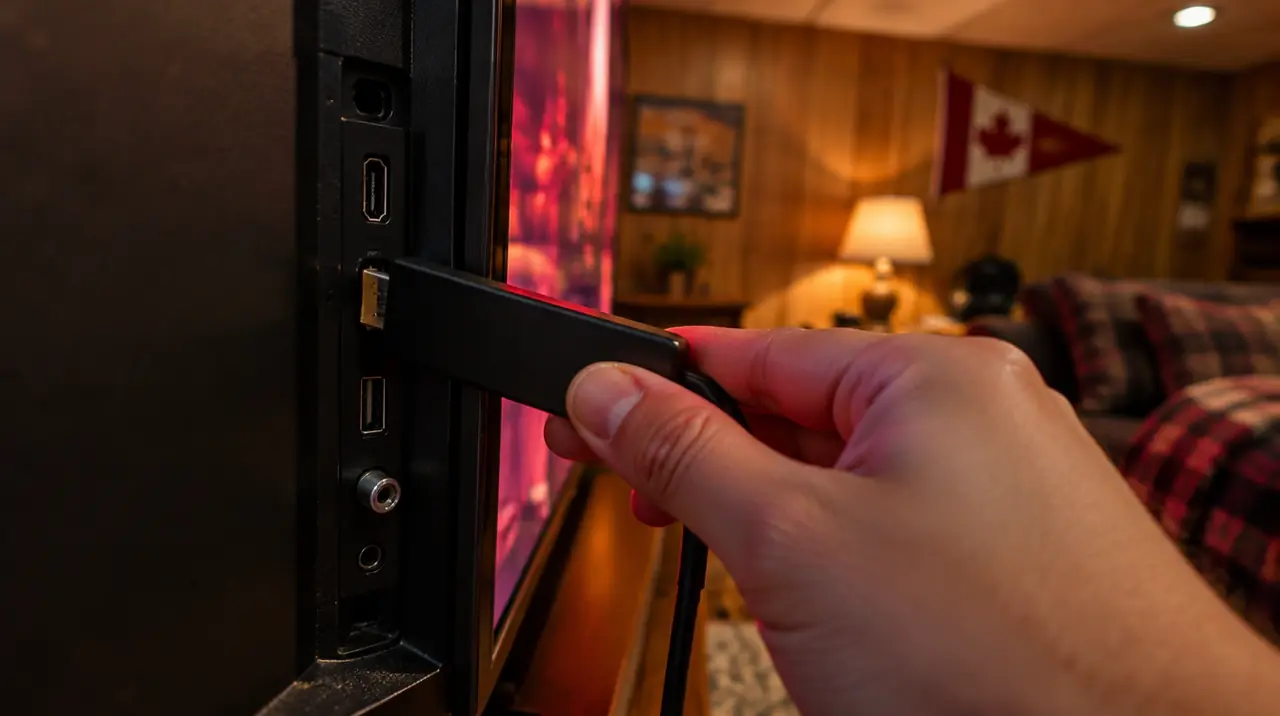
A streaming stick or box turns any TV with an HDMI port into a current device, and it is usually cheaper than a new TV. Here is how we would choose.
| Device | Good at | Watch out for |
|---|---|---|
| Fire TV Stick 4K family | Low cost, wide app choice, easy remote. See best IPTV app for Firestick | Mid-range hardware can be slow with huge guides; no Ethernet port without an adapter |
| Google TV Streamer or Chromecast with Google TV | Clean interface, Android apps. See Google TV Streamer setup | Higher price than a basic stick |
| Nvidia Shield | Fast, handles large lists, Ethernet built in | Costs the most |
| Apple TV | Smooth, good for Apple households | Pricey, different app set |
Our view: for a 2019 or older Samsung or LG, a Fire TV Stick 4K is the sensible default; for a heavy user who watches several hours a night with a big guide, a Shield or Google TV Streamer is worth the extra. See our devices page for the supported list and the installation guides for each. If the device is plugged in, set the TV’s input to that HDMI port, and leave the TV’s own apps for other uses.
What it costs to run IPTV on a TV like yours
The subscription is separate from any device. One screen is CA$19 for a month or CA$79 for twelve (65% less than paying CA$19 every month for a year, one screen); two screens are CA$29 and CA$129; three are CA$39 and CA$179; four are CA$49 and CA$199. New customers receive bonus months: one extra on 3 and 6 months, two extra on 12. A stick is a one-time cost, so older TVs are often cheaper to rescue than to replace. Before you buy anything, you can ask us whether your specific model is supported and whether the channel or event you want is covered; we will check before you pay.
The 60-day money-back guarantee from first paid activation applies to eligible new paid subscriptions, so you can test the whole chain on your own TV. See pricing for current terms, and for legality questions read is IPTV legal in Canada.
Our recommendation
If your Samsung or LG is from 2021 or later and the store has a player you like, use it. If it is 2019 or older, or the store comes up empty, do not spend an evening hunting; a streaming stick solves the problem and gives you a device you can move to the next TV. We would not recommend sideloading or developer-mode workarounds to anyone who is not a developer.
Frequently asked questions
Can I install an IPTV app on a Samsung Smart TV?
Possibly, if a player app is listed for your model year in the Samsung Smart Hub store (Home > Apps > search). Ordinary owners cannot sideload apps. If your TV's year is outside the developer's support list, use a streaming stick instead.
How do I find my Samsung or LG TV's model year?
On Samsung go to Settings > Support > About This TV and read the model code; the letter after the series gives the year, such as B for 2022. On LG, open Settings > All Settings > General > About This TV; the digit after the series letters shows the year.
Why is the IPTV app missing from my LG webOS TV?
The LG Content Store only lists apps that the developer has built for your webOS version. Older sets often lose support when developers move on. Check again after a firmware update, or use a Fire TV or Google TV streaming device.
Is Tizen the same as Android TV?
No. Tizen is Samsung's own operating system and webOS is LG's. Android and Google TV apps do not install on them, and APK files will not run. That is why streaming sticks open up more app choices on Samsung and LG screens.
Does IPTV work on a 2016 or 2017 smart TV?
It might, but support is patchy. Store apps drop older platform versions, and the TV may lack memory or video codecs for large guides and 4K. A streaming stick on the HDMI port is a more reliable route, and it can move to your next TV.
What should I do if the Samsung Smart Hub app store will not load?
Check the TV's date and time, test the network, and try Settings > Support > Device Care > Self Diagnosis > Reset Smart Hub. Then restart the TV. If it still fails after that, a streaming stick on the HDMI port avoids the problem entirely.
Sources
Your next step
Test the channels you actually watch.
Tell us your device, languages and preferred channels. We will help confirm availability and set up a free 24-hour trial. Read the plan and guarantee terms before paying.
Useful for someone else?
Share the guide without losing the context.