If IPTV freezes during live sports but is fine the rest of the day, the cause is almost always load: too many streams on your own router, a congested Wi-Fi channel, a tired streaming device, or a busy evening on your internet provider’s network. Work through them in that order, because the first three are yours to fix in about an hour and the last one is not.
The fastest way in is one question: does everything freeze at the same moment, or only one channel? Everything at once points at your home or your provider. One channel points at that channel’s source.
Why live sport freezes when a movie does not
A movie can load many seconds ahead, so a short network hiccup is hidden. A live game has to be delivered almost as it happens, so the player keeps only a few seconds in reserve. When packets arrive late, that reserve empties and the picture stops. The Wikipedia article on network congestion describes the general effect: any shared link asked to carry more than it can handle starts delaying data.
Game night makes this worse in two ways. More households stream at the same hour, which loads your provider’s local network. And the number of devices on your own Wi-Fi is highest when the family is home, which loads your router.
Ninety-second triage: whose problem is it?
- Note the time and the channel. You will need both whatever happens next.
- Change channel. If another live channel plays fine, the first channel’s source is the issue. Report it with the time.
- Test another service on the same TV. If a streaming app on the same device plays smoothly, the device is healthy and the problem is the stream or the player.
- Test a second device. If a phone on the same Wi-Fi streams something else smoothly while the box freezes, suspect the box or its Wi-Fi link, not your provider.
- Test off-peak. If a replay of the same type of content plays smoothly at 10 am but freezes at 8 pm, congestion in the evening is likely.
| What you see | Probable cause | Your move |
|---|---|---|
| Every channel freezes, other apps too | Home network or ISP | Restart modem and router; wire the device; test off-peak |
| Only live sports freeze, movies fine | Low buffer meets peak load | Wire the device; raise the player buffer; reduce other traffic |
| One channel freezes, others fine | That source | Switch to another feed; report time and channel |
| Freezes begin after 20 to 30 minutes | Device overheating or memory pressure | Clear cache; restart; give the stick airflow |
| Picture freezes but sound continues | Decoder or video hardware strain | Switch decoder mode in the player; lower the resolution |
Fix 1: Wi-Fi, the usual culprit
Most “freezing” in homes is a weak wireless link. A Fire TV Stick behind a TV in another room can be one wall from the router and still receive a signal that wobbles every time someone runs a microwave.
- If the device is on 2.4 GHz: move it to 5 GHz. 2.4 GHz reaches farther but is crowded by neighbours’ networks, Bluetooth, baby monitors and microwaves.
- If you must use 2.4 GHz: set the router to channel 1, 6 or 11, the three that do not overlap.
- If 5 GHz drops out: try a lower channel in the 36 to 48 range. Some higher channels share spectrum with radar and are forced to switch away without warning.
- If the box is more than one room away: add a wired link or a mesh node halfway. A powerline adapter is a third option when no cable can be run.
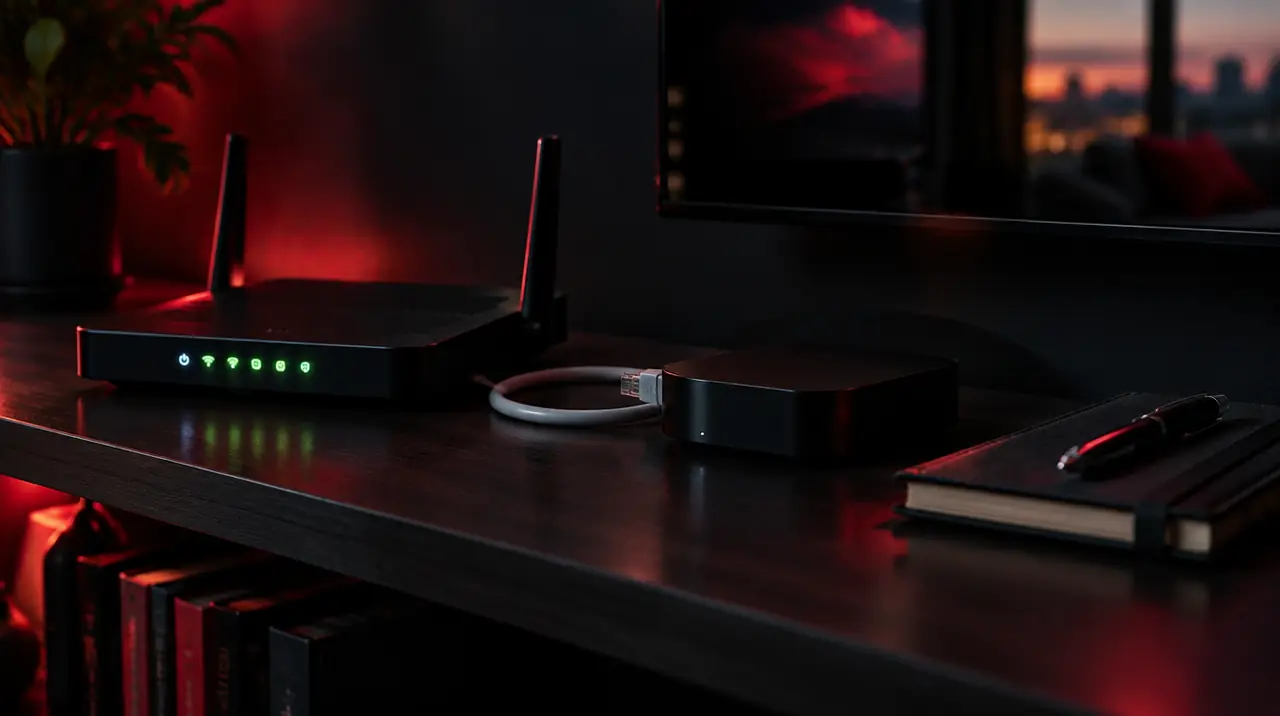
The strongest fix is a cable. An Ethernet adapter for the stick, or an Android TV box with a built-in Ethernet port, removes wireless problems entirely. Our guide to Wi-Fi versus Ethernet for IPTV shows the trade-offs, and the router settings guide covers channels and QoS in detail.
Fix 2: Count your streams and your speed
HD sports need roughly 5 to 8 Mbps per stream, and 4K roughly 15 to 25 Mbps per stream. Add the phones, laptops and consoles on the same router. A household with two games on, one video call and a cloud backup can exceed a 50 Mbps plan without anyone noticing.
A plain speed test can mislead because it measures a short burst. What matters is whether the connection stays steady under load. Run the speed test while another device streams video and while someone downloads. If latency jumps from a few milliseconds to hundreds, you are seeing bufferbloat, where a saturated router queues packets and delays everything. The fix is a router with smart queue management or a QoS setting that prioritizes the streaming device. Our internet speed guide has the sizing table.
Pause cloud backups, game downloads and photo syncing before the game starts. This single habit fixes more evenings than any router change.
Fix 3: The device and the app
Streaming sticks run warm and their memory fills. A freeze that starts late in a game is a clue.
- Clear the app cache. On Fire TV: Settings > Applications > Manage Installed Applications > your player > Clear cache. On Android TV and Google TV: Settings > Apps > See all apps > your player > Clear cache. Do not choose Clear data unless you want to log in again. See the cache guide for the steps in more detail.
- Restart the device before the game, not during it.
- Free storage. If the device shows low storage, remove apps you do not use.
- Update the player and the device software.
- Try the decoder setting. In many players, switching between hardware and software decoding changes how heavy the load is. Hardware is usually smoother; if one setting freezes, try the other.
- Keep the stick cool. Use the supplied extension cable so it is not pressed against the back of a hot TV.
On Apple TV, there is no cache to clear; restart it from Settings > System > Restart and make sure it is on the latest tvOS.
Fix 3b: The player’s buffer setting
Many players let you choose how much video to hold in reserve. A larger buffer adds a few seconds of delay but absorbs short hiccups, which is a good trade for a game you are not betting on. Raise it one step at a time and test for a full period before changing it again. Setting it to the maximum can make the device run out of memory, which brings the freezing back in a different form. If your player has a “reconnect on failure” or “auto-retry” option, turn it on so a brief dropout does not leave you on a stalled frame.
If the freeze fixes itself after about ten seconds, the buffer is doing its job and the source or network briefly stalled. If it never recovers until you change channel, the stream has dropped and the player is not retrying.
Fix 4: DNS, the small one
If channels take a long time to start but then play, the delay may be slow name lookups. Switching the router or device to a public resolver can help in some homes. On the router, replace the provider’s DNS servers with a public resolver such as 1.1.1.1 or 8.8.8.8 in the WAN or Internet settings. The Wikipedia article on DNS explains what it does. Expect a modest improvement at best; it will not fix a congested line.
What you cannot fix, and what to do about it
| Point in the chain | What you can do |
|---|---|
| The channel’s source | Report the time and channel; try another feed if offered |
| Internet routes between source and you | Note whether other services also slow down |
| Your internet provider’s local network | Compare peak and off-peak; ask the provider about congestion in your area |
| Satellite or fixed wireless | Expect more variation; test at game time |
If the same pattern repeats every Saturday at the same time across a month, you have evidence. Ask your internet provider for a service check or for a plan with more headroom. In Canada, cable internet from companies such as Rogers, Bell, Telus, Vidéotron, Cogeco and Eastlink can show evening slowdowns in busy neighbourhoods, while fibre is generally steadier.
The 10-minute pre-game routine
- Pause every download and backup in the house.
- Restart the streaming device.
- Confirm 5 GHz or Ethernet.
- Open the guide and check the game’s start time against your time zone.
- Open the channel and watch it run for two minutes before the puck drops.
If you sign up with us, the 60-day money-back guarantee starts at first paid activation, so you can test across several real games. Read the guarantee and, for the bigger picture on picking a service for games, see IPTV for sports in Canada. If freezing continues after these fixes, message the team with the date, time and channel; My IPTV Canada has 24/7 customer service in English and French. A more general walkthrough is in how to fix IPTV buffering.
Frequently asked questions
Why does my IPTV freeze during live sports but not movies?
Live streams hold only a few seconds of buffer, so any delay shows immediately, while movies load far ahead. Peak evenings add load to your Wi-Fi, router and provider at the same time. Wire the device and pause other traffic first.
How do I stop IPTV from freezing?
Use Ethernet or 5 GHz Wi-Fi, restart the router and device, clear the player cache, pause downloads, and check how many streams share the connection. If one channel only freezes, report the time and channel to support.
Is IPTV freezing caused by my internet provider?
Sometimes. If everything freezes at the same moment on peak evenings, compare with off-peak. A repeating pattern across several weeks is useful evidence when you contact your provider about congestion.
How do I clear the cache on a Fire TV Stick?
Go to Settings > Applications > Manage Installed Applications, choose your player, and select Clear cache. Avoid Clear data unless you want to sign in again. Restart the stick afterwards.
Does changing DNS stop buffering?
It can help if channels are slow to start because of slow name lookups, but it will not fix a congested line or weak Wi-Fi. Treat it as a small tweak after wiring the device and clearing the cache.
How much internet speed do I need to watch live sports?
Allow roughly 5 to 8 Mbps per HD stream and 15 to 25 Mbps per 4K stream, times the screens in use at once, with headroom for other devices. Steadiness under load matters more than a peak speed-test number.
Sources
Your next step
Test the channels you actually watch.
Tell us your device, languages and preferred channels. We will help confirm availability and set up a free 24-hour trial. Read the plan and guarantee terms before paying.
Useful for someone else?
Share the guide without losing the context.