The simplest IPTV setup for an older viewer is one TV, one streaming stick or box, one remote with big buttons, and a short list of favourite channels that opens straight from the player’s home screen. A family member sets it up once, writes the steps on a card, and the viewer only ever presses power, OK and the channel buttons. That is the whole idea: take away every choice that is not about what to watch.
Who this guide is for
It is written for the daughter, son, grandchild or neighbour who ends up as the family’s tech support, and for older viewers who want to stay in charge of their own TV. It is not about talking down to anyone. Most frustration with streaming comes from too many apps, too many remotes and too many logins, and that frustrates people of every age. The fix is the same: reduce the number of steps between sitting down and watching.
The aim for the viewer is three actions: turn the TV on, pick a channel, turn it off. Everything else is the helper’s job, done once.
Step 1: Pick the device that fits the person
| Option | Why it suits | Where it struggles |
|---|---|---|
| Fire TV Stick (4K or 4K Max) | Voice remote with a microphone button, power and volume buttons that can control the TV, simple home row | The home screen has ads and suggestions that can distract |
| Apple TV 4K | Very stable, quiet interface, strong accessibility tools | Higher cost, and the small Siri Remote’s touch surface can be tricky for some hands |
| Android TV or Google TV box | Large remote options, reliable, flexible | More menus than needed |
| Smart TV with a player app | No extra device or second remote | Samsung and LG app choice is narrow, and updates can change menus |
Our default pick is a Fire TV Stick 4K Max with its voice remote, set to start the IPTV player first. It costs little, it can switch the TV on and off over HDMI, and replacing a lost one is cheap. If the viewer already uses an iPad and iPhone happily, an Apple TV 4K is also an excellent choice. For a wider look at hardware, see our guide to the best IPTV boxes in Canada.
Step 2: One remote, with power and volume linked
Two remotes is where it falls apart. The aim is for one remote to do everything.
- On the TV, make sure HDMI-CEC is turned on. The names vary: Samsung calls it Anynet+, LG calls it Simplink, Sony calls it Bravia Sync. It is usually under General or External Device Manager in the TV’s settings.
- On a Fire TV, go to Settings > Equipment Control and set up TV and volume control. The Fire remote’s power and volume buttons will then work on the TV.
- Test it: press power on the streaming remote and the TV should switch on and show the player or home screen. Press volume and the TV should respond.
- If volume does not work, set it up manually in the same Equipment Control menu using the TV brand.
- Put the old TV remote in a drawer, or tape a note on it: “Not needed.”
If the viewer finds the small Fire or Apple remote awkward, a third-party large-button remote that works with the stick is cheap and worth it. Check that it lists Fire TV compatibility before buying.
Step 3: Set up the player for one-press viewing
Install an IPTV player on the device using the steps in our guides for Firestick or Apple TV, and enter the login details. Then trim the player down.
- Favourites first. Build a favourites list with the ten channels the viewer actually watches. Put local news, weather and their regular programmes at the top. Most players let you long-press a channel to add it.
- Hide the rest. Hide categories such as international groups the viewer never visits, so the first screen is short.
- Number shortcuts. Some players accept channel numbers typed on the remote. If your viewer remembers “channel 6”, set the list up so favourites follow their old cable numbers where possible.
- Auto-start. Some players have a setting to launch with the stick. If yours does, turn it on so the first thing after power-on is the channel list.
- Home row. Move the player to the first slot on the home screen of the device, and move games, shopping and news apps out of the way.
Keep a note of which channels you ask us about. You can message our team to check a specific channel before you subscribe; we do not promise channels in print.
Step 4: Make it readable and audible
- Text size. On Fire TV, look under Settings > Accessibility for the options on text and the screen magnifier. On Apple TV, go to Settings > Accessibility for larger text and Zoom; Apple documents the options in its Apple TV user guide.
- Captions. Many players support subtitles on some channels. Turn them on in the player settings if the viewer needs them, and test on a news channel.
- Sound. Fix the volume range on the TV so the remote’s volume steps are not too small. A soundbar with a speech or dialogue mode is often a better buy than a new TV.
- Brightness. Set the TV to the standard or cinema picture mode. Avoid auto-dimming modes that make the screen go dark every few minutes.
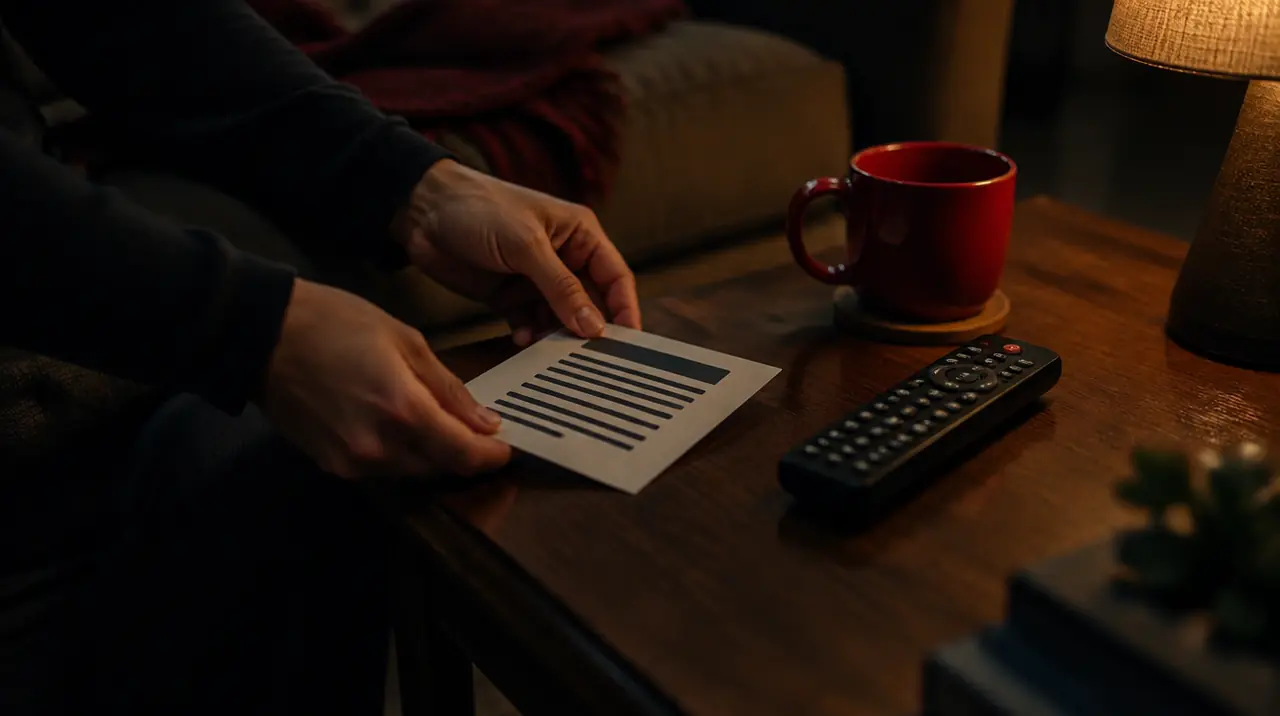
Step 5: Write the one-page cheat card
This is the most useful step of all. Print it in large type and tape it where the remote lives.
- Press the power button on the remote.
- Wait for the picture. It can take up to 30 seconds.
- Press OK on the channel you want. Press the back button to return to the list.
- If the screen is black: press Home, then press the button with the player icon.
- If the sound is gone: press the volume up button, then press mute once.
- If nothing works: unplug the stick for ten seconds and plug it back in, then wait one minute.
- Still stuck: call [helper’s name and number].
Write the helper’s number, not a website. For older users, a phone call to a person they know beats a chat window. Also write the Wi-Fi name and password on the back of the card, since an extender swap or router reset is the most common reason a working setup suddenly stops.
The handover visit: a 30-minute checklist
When you take the set to the person who will use it, resist the urge to demonstrate every feature. Run through this and stop.
- Have them turn the TV on and off with the new remote three times. Do not do it for them.
- Ask them to find their usual evening programme from the favourites list. If they hesitate, move that channel higher.
- Show the back button once. Show the home button once. Nothing else.
- Point to the cheat card and read the first two lines aloud together.
- Unplug the stick, plug it in again, and have them do the same. This is the only recovery step they need to know.
- Agree on when you will call next week to check in. A scheduled call catches small problems before they turn into frustration.
Leave the setup alone for a week before you change anything. Small tweaks made from a distance are how a working setup stops working. If something does need to change, change one thing and call to explain it. Seniors tend to blame themselves when a menu moves, and a short call prevents that.
If this happens, do this
- If the screen says there is no internet, unplug the router for ten seconds, plug it back in, and wait two minutes. Then power-cycle the stick. This fixes most cases.
- If one channel is frozen but others are fine, change channel and come back. If it repeats, tell the helper the channel name and time; that detail speeds up any support request.
- If the TV switches to the wrong input, press the TV’s Input or Source button and choose the HDMI port the stick is in. Label the port on the TV with tape.
- If everything is slow or freezes in the evening, see our buffering guide. A wired connection or a nearer router often solves it.
Scam warnings every family should read
Older Canadians are targeted by scammers, and subscription services are a common cover story. The Canadian Anti-Fraud Centre publishes current warnings and a reporting route at its official site. The rules for the household:
- Never share a screen-sharing code. Nobody legitimate needs to take over the TV or computer because “your account expired.”
- Never give card numbers by message or phone to someone who contacted you first. We do not ask for card details on our site, and our team arranges payment with the account holder on WhatsApp.
- Ignore urgent texts about suspended service or refunds. If in doubt, contact us through the email or WhatsApp on our contact page.
- Keep the helper involved in payments. One person in the family should be the contact.
- Beware of prices that look too good to be true. Our guide on comparing providers sets out the questions to ask.
What it costs, and the language question
For one TV, a one-screen plan costs CA$19 for a month, CA$29 for 3, CA$49 for 6, or CA$79 for 12. Over 12 months, CA$79 compares with CA$228 if you pay the one-month price each month, a saving of about 65%. A new customer on a 12 month plan gets 2 bonus months. Renewal is manual, so there is no automatic charge to catch an older account holder off guard. That matters more than most people realize. See the pricing page and the 60-day guarantee, which runs from first paid activation.
Our team helps in English and French, which helps families where the older viewer is more comfortable in French. If the viewer needs a Quebec-focused setup, see IPTV in Québec. For a wider walk-through of choosing and connecting devices, the any-TV guide is a good next read.
When IPTV is not the right choice
If the viewer lives with unreliable internet, can only watch one familiar channel, or does best with a cable box they have used for twenty years, switching may cause more stress than it saves. An antenna for local channels is a simple alternative. IPTV makes sense when the monthly bill matters and the family can provide a backup phone call. Try it on a short term first.
Frequently asked questions
What is the easiest IPTV setup for an elderly person?
One TV, one streaming stick, one remote, and a favourites list of about ten channels. Link the remote's power and volume to the TV through HDMI-CEC, put the player first on the home screen, and leave a large-print cheat card beside the remote.
Is IPTV hard for seniors to use?
Not once it is set up properly. The hard part is the first setup, which a family member can do once. After that, watching works like cable: turn on, pick from favourites, turn off. A simple remote and a short channel list matter more than the device.
Which device is best for an older person, Firestick or Apple TV?
A Fire TV Stick with the voice remote is cheap, simple and links to the TV's power and volume. Apple TV 4K is excellent for people already using an iPhone or iPad. Choose the one the helper can support best.
How can I protect a parent from IPTV scams?
Keep one family member in charge of payments, never share screen-sharing codes, never give card numbers to anyone who contacted you first, and ignore urgent texts about suspended service. Report suspicious contact to the Canadian Anti-Fraud Centre.
Does IPTV have French support for older viewers?
Our team helps in English and French, and many players let you switch menus to French. Ask us to check any specific French channel your parent watches before you pay. We do not promise individual channels in print.
Can I set up IPTV for a parent who lives in another city?
Yes, in two ways: configure a stick at your place and post it, or guide them by phone while a neighbour holds the remote. Test the whole setup at your end first, and leave the cheat card with their Wi-Fi details written on it.
Sources
Your next step
Test the channels you actually watch.
Tell us your device, languages and preferred channels. We will help confirm availability and set up a free 24-hour trial. Read the plan and guarantee terms before paying.
Useful for someone else?
Share the guide without losing the context.